
Passkey Authentication (early access)
Early Access
MobileID Passkeys are now live in the production environment as a freshly launched capability. We still describe the feature as early access because the rollout is recent and platform compatibility, policy options, and operational guidance may continue to evolve quickly. Check back shortly for updates.
MobileID now supports FIDO2 Passkeys as an authentication method within the OpenID Connect service. Relying Parties can allow their users to authenticate using MobileID Passkeys - alongside or instead of the existing MobileID SIM, App, and OTP SMS methods.
Scope: standard Mobile ID OIDC vs. Entra External MFA
This page documents the standard Mobile ID OIDC relying-party integration, where the RP uses the authorization code flow and can request Mobile ID-specific ACR values, passkey scopes, and keyringId handling.
Microsoft Entra ID External MFA is a different integration pattern. In that model, Entra ID calls the external provider with its own OIDC implicit-flow profile and consumes only the provider result. The Entra admin center does not expose these Mobile ID-specific ACR or passkey controls. See Public Cloud Integration / Microsoft Entra ID.
What Are Passkeys?
The MobileID ecosystem already offers several proven authentication methods: MobileID SIM (SIM-based authentication), MobileID App (push-based authentication on iOS and Android), and OTP SMS. With the introduction of FIDO2 Passkeys, MobileID now adds a modern, phishing-resistant authentication option to its portfolio - giving Relying Parties and their users even more flexibility to balance security and convenience.
Passkeys are built on the FIDO2 standard and the WebAuthn API. Instead of passwords, passkeys use public-key cryptography: a private key stays securely on the user's device (or synced within a platform ecosystem), while the corresponding public key is stored by the service.
Key characteristics of passkeys:
- Phishing-resistant - Authentication is cryptographically bound to the origin (domain), so credentials cannot be phished or replayed on a different site.
- Passwordless - Users authenticate with biometrics (fingerprint, face), a device PIN, or a hardware security key. No passwords to remember or leak.
- Multi-factor by design - Passkeys inherently combine possession (the device holding the private key) with a user verification factor (biometrics or PIN), satisfying multi-factor authentication requirements in a single gesture.
- Multi-device - Depending on the passkey type, credentials can be synced across devices within a platform ecosystem (e.g., Apple iCloud Keychain, Google Password Manager) or bound to a single hardware device (e.g., YubiKey).
Device-Bound vs. Synced Passkeys
The term "Passkeys" is an umbrella term for FIDO2-based authenticators. Under the hood, these can be platform authenticators (built into a device, such as Touch ID or Windows Hello) or roaming authenticators (external hardware keys, such as a YubiKey). These authenticator types differ significantly in how they store the private key - and this distinction directly impacts the security assurance level they can achieve.
For MobileID, one of the most relevant security standards is NIST AAL3 (Authentication Assurance Level 3), which specifies the highest level of authentication assurance. To achieve AAL3, the authenticator must be device-bound (the private key cannot be exported or synced) and the hardware must be FIPS 140-2 certified. Cloud-synced passkeys - while phishing-resistant and suitable for AAL2 - do not meet AAL3 because the private key is exportable across devices.
This distinction matters for Relying Parties integrating MobileID: while MobileID users are free to register any type of passkey in their MyMobileID Dashboard, the RP has full control over which passkey types are accepted during authentication. Through the passkey claims returned by MobileID (see Passkey Scope and Claims), the RP can enforce specific requirements - for example, accepting only FIPS 140-2 certified, device-bound passkeys for high-assurance use cases.
| Aspect | Device-Bound Passkeys | Cloud-Synced Passkeys |
|---|---|---|
| Private key storage | Stored locally on a single device's secure hardware (e.g., Secure Enclave, TPM) | Synced across devices via encrypted cloud services (e.g., iCloud Keychain, Google Password Manager) |
| Examples | YubiKey, Windows Hello, hardware security keys | Apple Passkeys, Google Passkeys |
| Portability | Tied to one device; if lost, the passkey is lost | Available on all devices within the user's ecosystem |
| NIST AAL3 compliance | Yes (if FIPS 140-2 certified) | No (private key is exportable) |
| Phishing-resistant | Yes | Yes |
INFO
Only device-bound passkeys on FIPS 140-2 certified authenticators (e.g., YubiKey 5 FIPS Series with firmware 5.7+) can meet NIST AAL3 requirements. Cloud-synced passkeys are phishing-resistant and meet AAL2, but do not satisfy AAL3 because the private key can be exported.
Platform and Browser Compatibility
FIDO2/WebAuthn support is not uniform across operating systems, browsers, and transport methods (USB, NFC, Bluetooth). Whether a given passkey works in a particular environment depends on the combination of the operating system, browser, authenticator type, and whether user verification (PIN or biometrics) is required. These factors can lead to situations where a passkey that works on one platform fails on another.
Known limitation: Hardware security keys over NFC on Android
At the time of writing, Android does not support PIN-protected FIDO2 credentials over NFC. Only USB transport is supported for credentials that require user verification via PIN. This means that FIPS-compliant hardware security keys that enforce a PIN (such as the YubiKey 5 FIPS Series) cannot be used via NFC on Android devices, although they work as expected over USB. The same keys work fine over both NFC and USB on iOS/iPadOS and desktop platforms.
This is a platform-level restriction, not a MobileID limitation. The current status may change as Android and Google Play Services evolve.
The passkey ecosystem is evolving rapidly. Rather than providing version-specific compatibility details here (which would quickly become outdated), Relying Parties and their users should consult the following actively maintained resources for the latest platform and browser support status:
- passkeys.dev: Device Support - FIDO Alliance community-maintained device and browser support matrix.
- Yubico: WebAuthn Browser Support - Detailed compatibility tables for hardware security keys, including transport method support (USB, NFC, Lightning) per platform.
- Token2: FIDO2 OS and Browser Compatibility - Broader overview of FIDO2 support across operating systems and browsers, including known limitations.
- Can I Use: Web Authentication API - Browser-level WebAuthn API support overview.
Recommendation for Relying Parties
To accommodate users on platforms with incomplete passkey support, prefer fallback ACR values (mid_al2_any or mid_al4_any) over passkey-only ACRs. This ensures users can always complete authentication, falling back to MobileID SIM, App, or OTP SMS, even when their device or browser does not support their passkey's transport method. See Passkey-Only vs. Fallback for details.
Why MobileID Passkeys?
Implementing passkey registration, management, and authentication from scratch is complex and resource-intensive for Relying Parties. MobileID Passkeys remove this burden entirely by leveraging a concept familiar from established OpenID Connect providers: all passkey operations happen on the mobileid.ch domain.
Similar to how signing in with Google redirects the user to google.com for authentication, MobileID redirects the user to mobileid.ch during the OIDC authorization code flow. Because the user's passkeys are bound to the mobileid.ch origin, they work seamlessly across any Relying Party that integrates MobileID - the user registers their passkeys once and can authenticate at any RP, regardless of the RP's domain. This centralized approach maintains full security guarantees, including the ability to achieve the highest assurance levels such as NIST AAL3 (see Authentication Flow below).
By using MobileID Passkeys, RPs benefit from:
- No passkey infrastructure to build - MobileID handles the entire FIDO2/WebAuthn registration and authentication lifecycle. RPs integrate via the standard OpenID Connect protocol they already use.
- Centralized passkey management - Users register and manage their passkeys on the MyMobileID Dashboard, secured by MobileID step-up authentication. RPs do not need to build passkey management UIs.
- Single registration, multi-RP usage - Passkeys are bound to the
mobileid.chdomain, not to individual RP domains. A single MobileID Passkey works across all Relying Parties that use MobileID OIDC. - Flexible authenticator support - Users can register passkeys from different platforms and vendors (Apple, Google, YubiKey, Windows Hello, etc.) and manage multiple passkeys on their account.
- NIST AAL3 possible - With FIPS 140-2 certified authenticators, RPs can achieve the highest NIST assurance level through MobileID, without building any of the complex infrastructure themselves.
- Backward-compatible - If an RP ignores all passkey-related parameters, or if passkeys are not enabled for the client account, the runtime behavior is identical to the current release.
How It Works
Passkey Registration
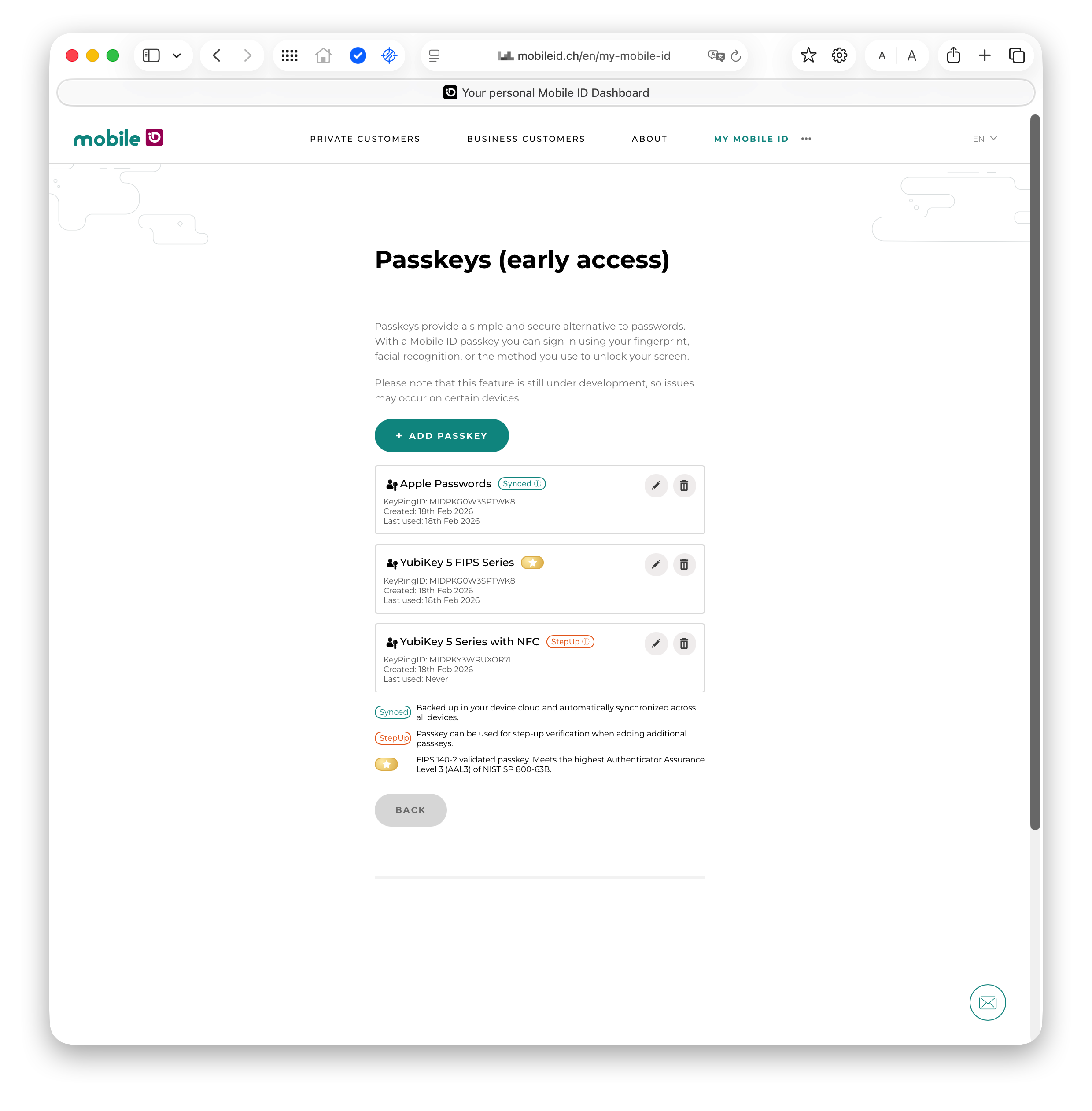
Users register their passkeys on the MyMobileID Dashboard at https://mobileid.ch/login:
- The user authenticates to the MyMobileID Dashboard (via SMS OTP verification).
- In the dashboard, the user selects Manage Passkeys.
- The user registers one or more passkeys - the passkey name defaults to their MobileID mobile number.
- Passkeys are bound to the
mobileid.chdomain, enabling cross-RP usage.
Users can register passkeys from different platforms (e.g., Apple Touch ID, Google Password Manager, YubiKey) and manage (list/delete) them at any time.
Authentication Flow (OIDC)
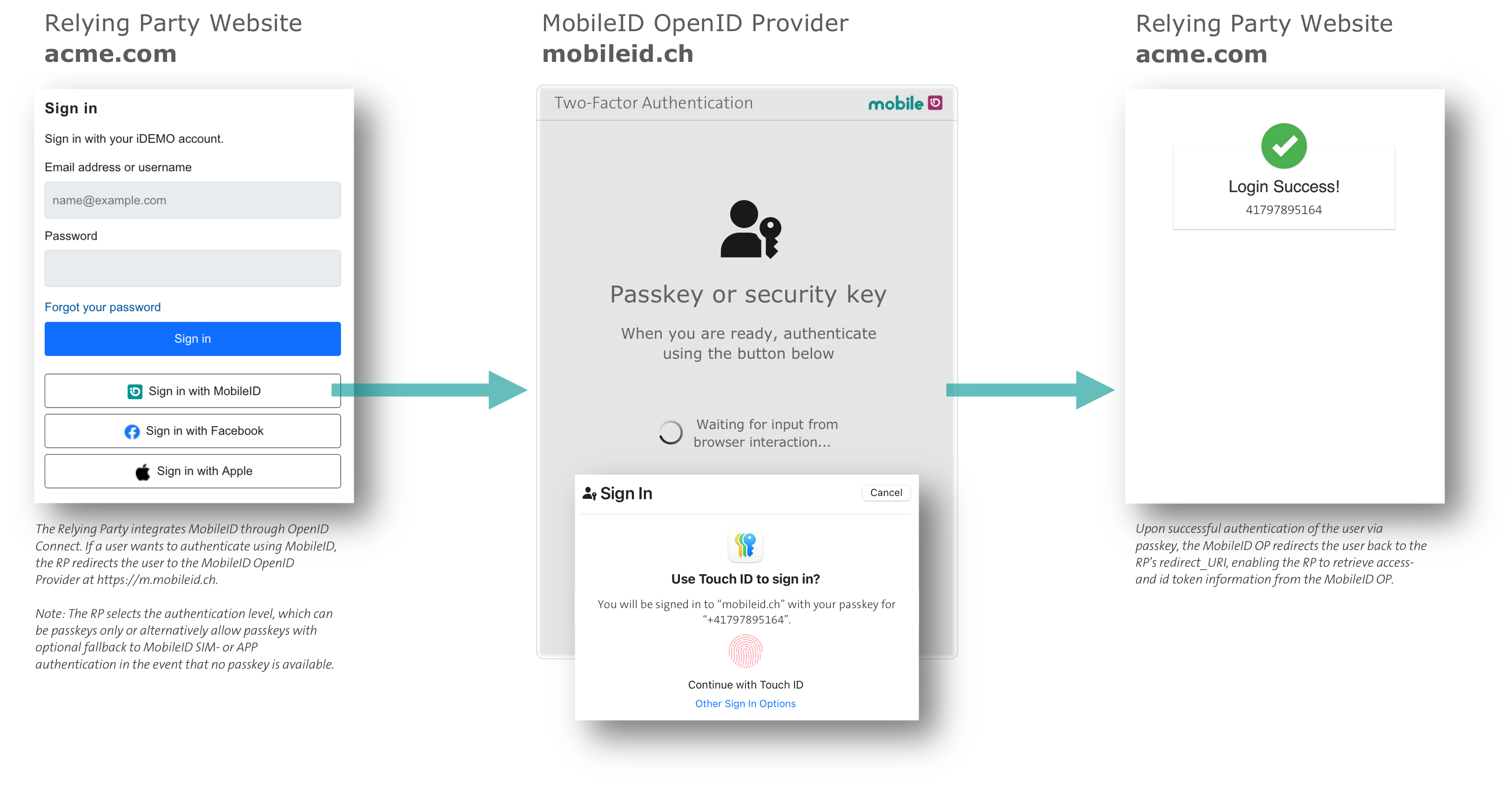
During the OpenID Connect authorization code flow, passkey authentication works as follows:
- The user clicks the login button on the Relying Party's website.
- The user's browser is redirected from the RP's domain to the
mobileid.chdomain (the MobileID OpenID Provider). - On the
mobileid.chdomain, the user is prompted to authenticate with their MobileID Passkey - this works because the passkeys were registered on the samemobileid.chdomain. - After successful passkey authentication, the user is redirected back to the RP with the authorization code.
- The RP completes the standard token exchange and retrieves user claims.
TIP
The passkey authentication is usernameless and passwordless - the user simply confirms with biometrics, a PIN, or by tapping their hardware key. No phone number or username entry is needed if the RP enforces passkey-only authentication.
Passkey-Only vs. Fallback
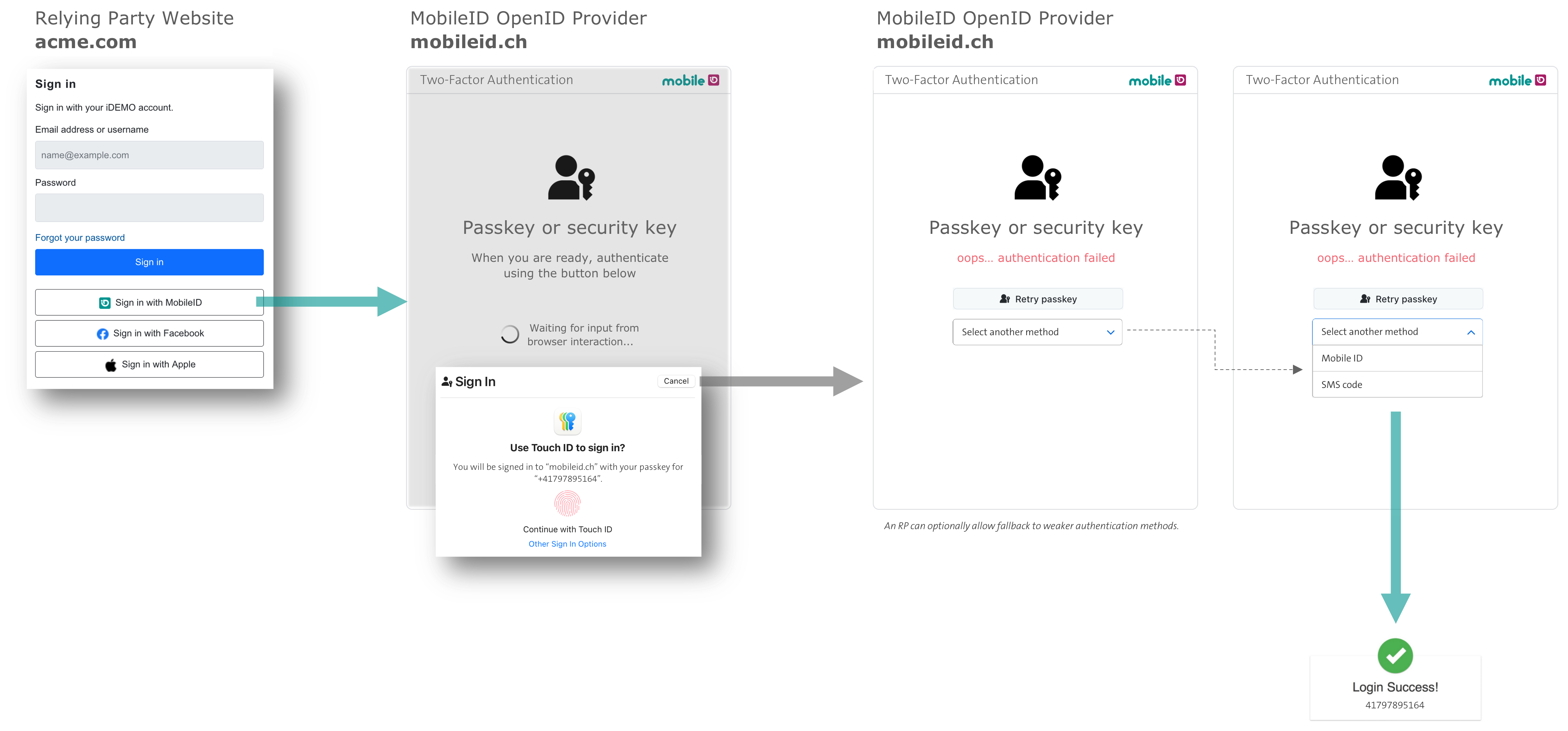
Depending on the chosen ACR value, the RP can configure two modes:
- Passkey-only (e.g.,
mid_al4_passkey): Only passkey authentication is allowed. If the user cannot authenticate with a passkey, they must abort and register a new passkey on the MyMobileID Dashboard before trying again. - Passkey-preferred with fallback (e.g.,
mid_al2_any,mid_al4_anywith passkeys enabled): Passkey authentication is tried first. If it fails, the user can fall back to MobileID SIM, App, or OTP SMS.
RP Control Over Passkey Quality
Beyond choosing between passkey-only and fallback modes, the RP can enforce specific passkey quality requirements. Every passkey authentication returns detailed claims via the mid_passkey scope (see Passkey Scope and Claims), such as mid_pk_cert_level (e.g., FIPS140-2), mid_pk_binding (e.g., device-bound), and mid_pk_aaguid (authenticator model). The RP can evaluate these claims to accept or reject the authentication based on its own security policy.
The highest assurance level is achieved with the ACR value mid_al4_passkey, which requires the RP to provide a keyringId in the login_hint. This enables KeyRingID matching - a MobileID-specific mechanism that guarantees NIST AAL3 compliance:
- The KeyRingID is a stable identifier associated with the user's passkey registration. As long as the KeyRingID matches, MobileID guarantees that the user is authenticating with a passkey that was registered through a verified step-up authentication process, ensuring continuity of trust.
- If the KeyRingID no longer matches, it means the user has changed their passkey (e.g., registered a new one) but the required step-up authentication during the registration on the MyMobileID Portal was skipped or bypassed. In this case, AAL3 cannot be guaranteed, and the RP is notified via the claims.
- The KeyRingID is returned as the
mid_pk_keyringidclaim and should be stored by the RP for subsequent authentication requests at AL4.
This gives the RP a spectrum of choices - from using passkeys purely as a UX improvement (e.g., mid_al2_any with fallback to SIM/App), to enforcing the highest security level (e.g., mid_al4_passkey with KeyRingID and FIPS 140-2 validation). The various ACR values and their properties are detailed in the Passkey ACR Values table.
OIDC Passkey Parameters
Core Request Parameters
The following table shows the request parameters for an authorization request that uses passkey authentication. Most parameters are the same as for standard MobileID OIDC requests (see Getting Started).
| Parameter | Required | Example | Notes |
|---|---|---|---|
response_type | Yes | code | Standard OIDC |
scope | Yes | openid phone mid_passkey | Add mid_passkey for passkey claims |
client_id | Yes | rpdemo | Issued by Swisscom |
redirect_uri | Yes | https://rp.example.com/cb | Must match registration |
acr_values | Yes | mid_al4_passkey | See Passkey ACR Values |
state / nonce | Yes | random | Standard OIDC |
ui_locales | No | de | en, de, fr, it |
login_hint | No | JSON | See Login Hint Extensions |
dtbd | No | "Login to #CLIENT#?" | Ignored for passkey authentication |
WARNING
The dtbd parameter is ignored during passkey authentication, since the FIDO2 authentication ceremony is handled natively by the browser/authenticator.
Passkey Scope and Claims
To receive passkey-related claims, add the mid_passkey scope to the authorization request. The following claims are returned via the UserInfo endpoint (or optionally in the ID Token):
| Scope | Claim | Type | Example Value | Description |
|---|---|---|---|---|
mid_passkey | mid_pk_keyringid | string | MIDPK123A567B90 | The user's passkey keyring identifier |
mid_pk_binding | string | device-bound | syncable | Whether the passkey is bound to a device or synced | |
mid_pk_cert_level | string | FIPS140-2 | CommonCriteria | Certification level of the authenticator | |
mid_pk_created_ts | number | 1717584000 | When the credential was first registered (Unix epoch) | |
mid_pk_last_used_ts | number | 1717591234 | Last usage timestamp (helps risk engines spot dormant keys) | |
mid_pk_aaguid | string | 2fc0579f-8113-... | FIDO Metadata Service identifier; maps to authenticator vendor/model | |
mid_pk_cred_fingerprint | string | pQECAyYgASFY... | SHA-256 of the credential public key (COSE format) | |
mid_pk_auth_attachment | string | platform | cross-platform | Authenticator attachment modality | |
mid_pk_os_family | string | iOS | Android | Windows | OS family of the authenticator platform | |
mid_pk_aal3 | boolean | true | Whether the authenticator used in the transaction is NIST AAL3-compliant |
Claim delivery and availability
The mid_pk_keyringid claim is also available via the mid_profile scope, allowing RPs to retrieve the KeyRingID without requesting the full mid_passkey scope. The signer certificate chain claim mid_profile_signer_cert_chain is delivered via mid_profile scope (not mid_passkey).
ID Token should carry the minimal set of claims needed for cryptographic proof (sub, iss, aud, acr, amr, nonce, etc.). UserInfo endpoint is the recommended delivery channel for passkey detail claims, as they may change and can be verbose.
Following OIDC best practice, if a specific claim is not available for a given authentication (e.g., the authenticator does not report a certification level), that claim is simply omitted from the response rather than returned with a null or empty value.
Login Hint Extensions
The login_hint JSON schema has been extended with passkey-related fields. The full schema is:
{
  "enableManualInput": true,
  "useLDAP": false,
  "hints": [
    {
      "msisdn": "+41791234567",
      "sn": "MIDCHEYUD1YE4QB1",
      "keyringId": "MIDPK123A567B90",
      "userName": "john.doe",
      "userPassword": "plain-secret",
      "isHashed": false,
      "default": true
    }
  ]
}
New passkey-specific field:
| Field | Type | Description |
|---|---|---|
keyringId | string | Restricts passkey authentication to a specific keyring. Required for mid_al4_passkey and mid_al4_any (when passkeys are enabled). |
Rules:
- Omit fields you don't need - the server tolerates missing keys.
snmust be present for AL4 unless fetched via LDAP.keyringIdis required for AL4 passkey flows to enforce a specific keyring.useLDAPandmsisdnare mutually exclusive.
Passkey Login Hint Examples
Passkey-only (AL4):
{"hints": [{"msisdn": "+41765XXXXXX", "keyringId": "MIDPKXXXXXXXXXX"}]}Passkey-preferred with SIM/App fallback (AL4):
{"enableManualInput": false, "hints": [{"msisdn": "+41765XXXXXX", "sn": "+574XXXXXX", "keyringId": "MIDPKXXXXXXXXXX"}]}Passkey-preferred (AL2), no keyring restriction:
{"enableManualInput": true, "hints": [{"msisdn": "+41765XXXXXX"}]}Passkey ACR Values
The following table shows how passkeys fit into the MobileID Authentication Level (AL) matrix. Passkeys are supported at AL2 and AL4. There is no passkey support at AL3.
 Included
 Excluded
 Included, if 'Passkeys' feature is enabled for the client account
| acr_values | Authentication Method | Additional Checks | NIST-AAL3 | Remarks | ||||
|---|---|---|---|---|---|---|---|---|
 SIM |  App |  OTP |  Passkey |  CH |  KeyRing | |||
mid_al2_any | | | | | | | | Passkey-preferred, if passkeys_enabled:true for the client account.User can select a fallback method if Passkey Auth fails. Use this AL if UX is more important than security. Optional login_hint to provide MSISDN:{"enableManualInput": false, "hints": [{"msisdn":"+41765XXXXXX"}]} |
mid_al3_any | | | | | | | | See note [1] |
mid_al3_any_ch | | | | | | | | |
mid_al3_simcard | | | | | | | | |
mid_al3_mobileapp | | | | | | | | |
mid_al4_any | | | | | | | | Passkey-preferred, if passkeys_enabled:true for the client account.User can select a fallback method if Passkey Auth fails. Use this AL if security is important and phishing risk is acceptable. RP must provide SN and KeyRingId (if Passkey is enabled) in login_hint:{"enableManualInput": false, "hints": [{"msisdn":"+41765XXXXXX", "sn":"+574XXXXXX", "keyringId":"MIDPKXXXXXXXXXX"}]} |
mid_al4_any_ch | | | | | | | | |
mid_al4_simcard | | | | | | | | |
mid_al4_mobileapp | | | | | | | | |
mid_al4_passkey | | | | | | | | Passkey-only & phishing-resistant. Use this AL if security and phishing-resistance is important, with a trade-off that only Passkeys can be used. Optionally, this scenario may be used to comply with NIST AAL3, which requires the user to have a FIPS 140-2 certified authenticator (passkey) registered. RP must provide KeyRingId in login_hint:{"hints": [{"msisdn":"+41765XXXXXX", "keyringId":"MIDPKXXXXXXXXXX"}]} |
[1] Passkeys are only supported with AL2 or AL4. There is no support for Passkeys with AL3. To keep things simple, the RP should use AL4 and provide keyringId via login_hint.
Passkey Feature Flag
Passkey support is controlled via the passkeys_enabled flag, which Swisscom configures per OIDC client (a single RP can have multiple OIDC clients). The RP can request Swisscom to set this flag to true or false for each of its clients.
This flag determines whether passkeys are available and affects the authentication method priority order when the RP requests an ACR with _any suffix:
passkeys_enabled (per client) | Priority order for _any ACRs |
|---|---|
false (default) | SIM ➡️ App ➡️ SMS |
true | Passkey ➡️ SIM ➡️ App ➡️ SMS |
When set to true and the user has a registered passkey, passkey authentication is offered first. If the passkey authentication fails or the user opts out, MobileID falls back to the next available method according to the priority order.
WARNING
- If the requested ACR is disabled for the client, MobileID returns error
mid_sec_2020. - If
passkeys_enabledisfalsebut the RP requests a passkey-only ACR (e.g.,mid_al4_passkey), MobileID returnsmid_auth_3080("No authentication method available").
Passkey AMR Values
The following AMR (Authentication Method Reference) values are returned in the ID Token when passkey authentication is used:
Included Excluded| amr_values | Authentication Method | Remarks | |||
|---|---|---|---|---|---|
SIM | App | OTP | Passkey | ||
mid_app | | | | | |
mid_geo | | | | | |
mid_otp | | | | | |
mid_sim | | | | | |
mid_sms | | | | | |
phr | | | | | Standard AMR "Phishing-Resistant". Only for ACR mid_al4_passkey. |
hwk | | | | | Standard AMR RFC 8176 "Hardware Key" |
Canonical RP Scenarios
The following table summarizes the most common passkey integration scenarios:
| # | Goal | acr_values | Key login_hint flags | Notes |
|---|---|---|---|---|
| 1 | AL4, Passkey-only, phishing-resistant, FIPS- or device-bound | mid_al4_passkey | keyringId | Requires passkeys_enabled:true. MobileID restricts passkey choices to the keyring. RP must request scope mid_passkey and validate claims to ensure a FIPS- or device-bound passkey was used. |
| 2 | AL4, Passkey-only, phishing-resistant | mid_al4_passkey | keyringId | Requires passkeys_enabled:true. MobileID restricts passkey choices to the keyring. |
| 3 | AL4, Passkey-preferred, SIM/App fallback | mid_al4_any | keyringId, sn, optional: enableManualInput, msisdn | MobileID restricts passkey choices to the keyring. enableManualInput and msisdn may be used for fallback. |
| 4 | AL2, Passkey-preferred, SIM/App or OTP-SMS fallback | mid_al2_any | optional: enableManualInput, msisdn | Lightweight passkey integration with full fallback support. |
Future improvement
RPs may provide passkey requirements via login_hint (e.g., "device-bound") and MobileID could use this to restrict passkey choices to a specific subset of the user's available passkeys.
Passkey Error Codes
In addition to the existing error codes, the following errors are specific to passkey authentication:
| OIDC Error | Code | Description | RP Action |
|---|---|---|---|
invalid_request | mid_req_1140 | Invalid keyring ID in login_hint | Provide the keyring ID in the correct format. |
invalid_request | mid_req_1150 | AL4 passkey requested but keyring ID is empty in login_hint | Add valid keyring ID in login_hint. |
access_denied | mid_auth_3500 | Passkey keyring mismatch | Instruct user to use a valid passkey matching the keyring ID. |
access_denied | mid_auth_3900 | Authentication failed for other reasons (may include passkey validation failure) | Check if passkey validation failed; allow retry. |
Backward Compatibility
MobileID Passkey support is fully backward-compatible:
- If an RP ignores all passkey-related parameters or the client account has
passkeys_enabled:false(the default), the runtime behavior is identical to the current release. - The
passkeys_enabledfeature flag is managed perclient_idon the MobileID server. Contact Swisscom to enable passkeys for your account. - Existing scopes, ACR values, and login_hint formats continue to work unchanged.
Enabling Passkeys
To enable MobileID Passkeys for your OIDC client:
- Contact your Swisscom commercial contact or reach out to Backoffice.Security@swisscom.com.
- Update your authorization requests to include passkey-related parameters as documented above.
TIP
Start with mid_al2_any (passkey-preferred with fallback) for the smoothest user experience, then consider moving to mid_al4_passkey (passkey-only) once your users have registered their passkeys.