Public Cloud Integration
This chapter covers a few Mobile ID integration scenario examples with popular public cloud services.
Microsoft Entra ID
MobileID integrates with Microsoft Entra ID using External MFA. In this model, Entra ID remains the identity platform and hands the MFA step to MobileID as the external provider.
Within the broader Mobile ID ecosystem, strong user authentication can be fulfilled with Mobile ID SIM, Mobile ID App, and Mobile ID Passkeys. Microsoft Entra ID does not need to understand or configure these internal methods individually. It consumes the successful result of the Mobile ID provider flow.
In 2020, Microsoft announced plans to replace custom controls with a new method for integrating third-party authentication. MobileID has been working closely with Microsoft to deliver an authentication solution for Microsoft External MFA, previously known as External Authentication Methods (EAM), available in preview from May 2024 and generally available since March 24, 2026.
MobileID via External MFA can satisfy the standard Require multifactor authentication grant control in Entra ID Conditional Access and is managed alongside the other authentication methods in Entra ID. Users can register it as an Entra sign-in method, but Entra still delegates the actual second-factor journey to Mobile ID. It is not identical to every built-in Entra method, however: Microsoft does not currently support External MFA with Authentication Strengths.
INFO
External MFA in Microsoft Entra ID is now generally available. For the current Microsoft guidance, see the GA announcement, How to manage external MFA in Microsoft Entra ID, and the Microsoft Entra External MFA method provider reference. External MFA replaces Custom Controls, which Microsoft plans to deprecate on September 30, 2026.
How the Entra External MFA Hand-off Works
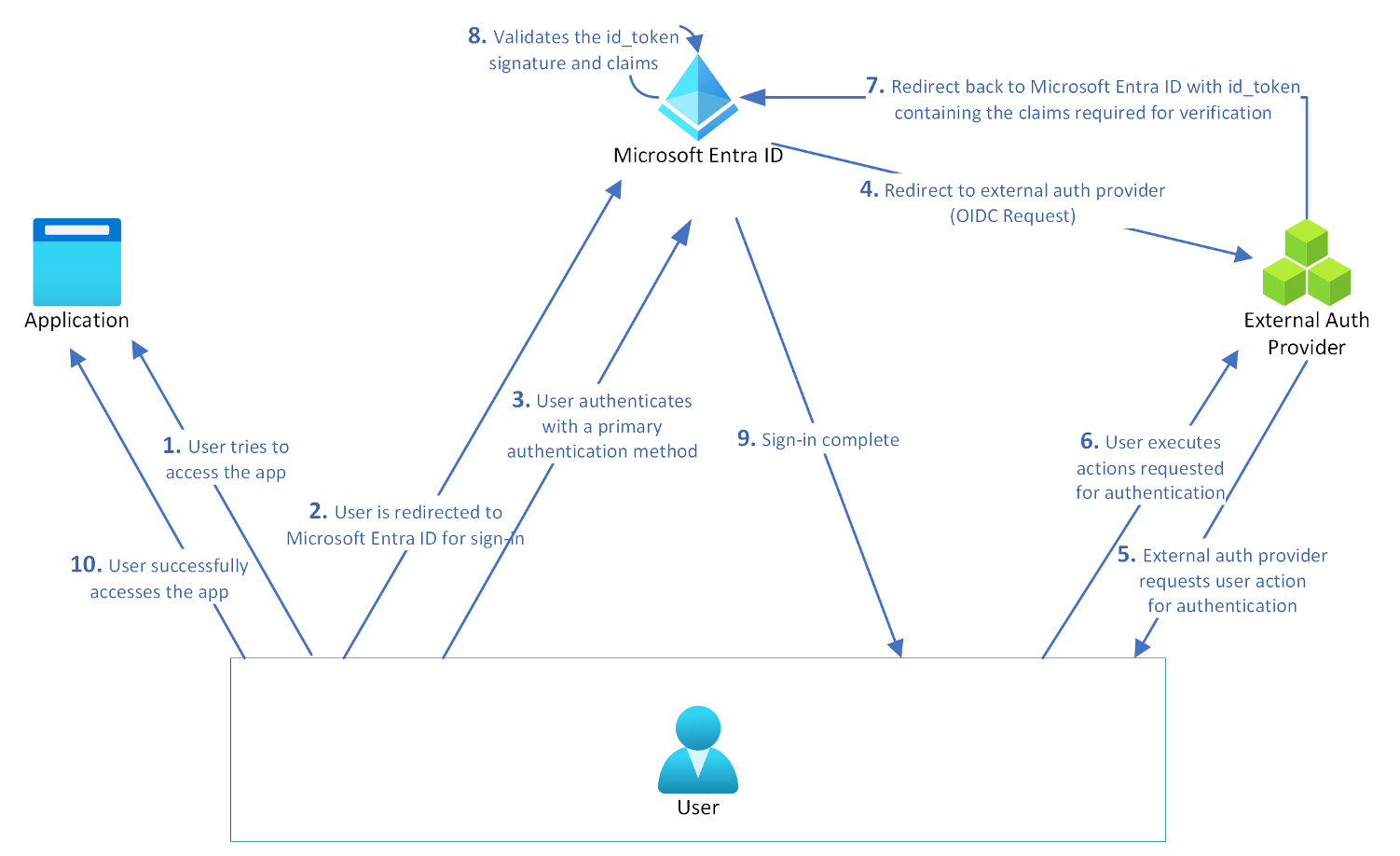
Microsoft Entra ID talks to the external provider through the OIDC implicit-flow pattern documented by Microsoft for External MFA. In practice, Entra ID sends a request to the MobileID authorization endpoint with parameters such as response_type=id_token, response_mode=form_post, and an id_token_hint that identifies the user and tenant.
MobileID validates that Entra context, runs the provider-side authentication journey, and returns a signed id_token to Entra ID. Entra ID validates the returned claims and decides whether the MFA requirement is satisfied.
This separation is important for documentation and operations:
- Entra ID decides when MFA is required and consumes the external MFA result.
- Mobile ID decides how the user authenticates inside the provider journey.
- Method-specific controls from the standard Mobile ID OIDC integration, such as ACR values or passkey
keyringIdhandling, are not configured in the Entra admin center.
Sign-in Flow
Known Limitations
- If MobileID External MFA is the user's only usable second factor, Entra ID can select it directly. If the user also has other methods and system-preferred MFA is enabled, Entra ID usually shows the highest-ranked built-in method first. In that case, the user might need to click "Other options" to choose Mobile ID.
- Microsoft Entra ID does not expose Mobile ID-specific method selection. Whether Mobile ID uses SIM, App, or Passkey inside the provider journey depends on the user's activated methods and the Mobile ID provider-side configuration for that Entra integration.
- Cross-tenant and guest scenarios require separate validation. Review Entra cross-tenant access settings for MFA claim trust and align the Mobile ID provider-side onboarding before rollout.
- For sovereign clouds such as Azure for US Government, confirm cloud-specific onboarding and application IDs before rollout. Microsoft documents separate cloud endpoints and app registrations for Global Azure and Azure for US Government, so commercial-tenant settings do not automatically carry over.
Prerequisites
To use MobileID MFA with Microsoft Entra ID, you'll need the following:
- Before you can integrate and use MobileID External MFA, the client onboarding process must have been completed by Swisscom. You will need the following information from Swisscom to be able to create an External MFA method:
- An Application ID is generally a multitenant application from your provider, which is used as part of the integration. You need to provide admin consent for this application in your tenant.
- A Client ID is an identifier from your provider used as part of the authentication integration to identify Microsoft Entra ID requesting authentication.
- A Discovery URL is the OpenID Connect (OIDC) discovery endpoint for the external authentication provider.
TIP
If you did not receive this information, it means that your onboarding process is not finished yet. Please check the state with your commercial contact or via Backoffice.Security@swisscom.com.
- An active Entra ID P1 or P2 subscription with Conditional Access enabled, and P1/P2 licenses assigned to each user who will log in using MobileID MFA. Plans like Microsoft 365 E3, E5, and F3, as well as Enterprise Mobility + Security E3 and E5, and Microsoft Business Premium, all include Entra ID Premium.
- A designated Entra ID admin account. Configuring the external MFA method requires at least the Authentication Policy Administrator role. Creating the Conditional Access policy requires at least the Conditional Access Administrator role. Granting admin consent for the MobileID application (Step 5 below) requires at least the Privileged Role Administrator role. A Global Administrator can perform all steps, but is not the minimum required role for each task. You can reduce the account's role privileges after setup is complete.
Configure Entra ID
Follow these steps to configure MobileID as an External MFA method in Microsoft Entra ID:
| Step | Description |
|---|---|
| 1 | Log in to Entra ID Go to the Microsoft Entra admin center and log in to your Entra ID tenant as at least an Authentication Policy Administrator. For Step 5 (admin consent), you will need at least the Privileged Role Administrator role. If you're using the Azure portal, the navigation will differ slightly. |
| 2 | Navigate to Authentication Methods In the Entra Admin Center, go to Entra ID → Authentication methods. External MFA is added from the Authentication methods policy view. If you're logged into the Azure portal instead, first select Microsoft Entra ID, then go to Security → Authentication Methods. |
| 3 | Add External MFA Click + Add External MFA. 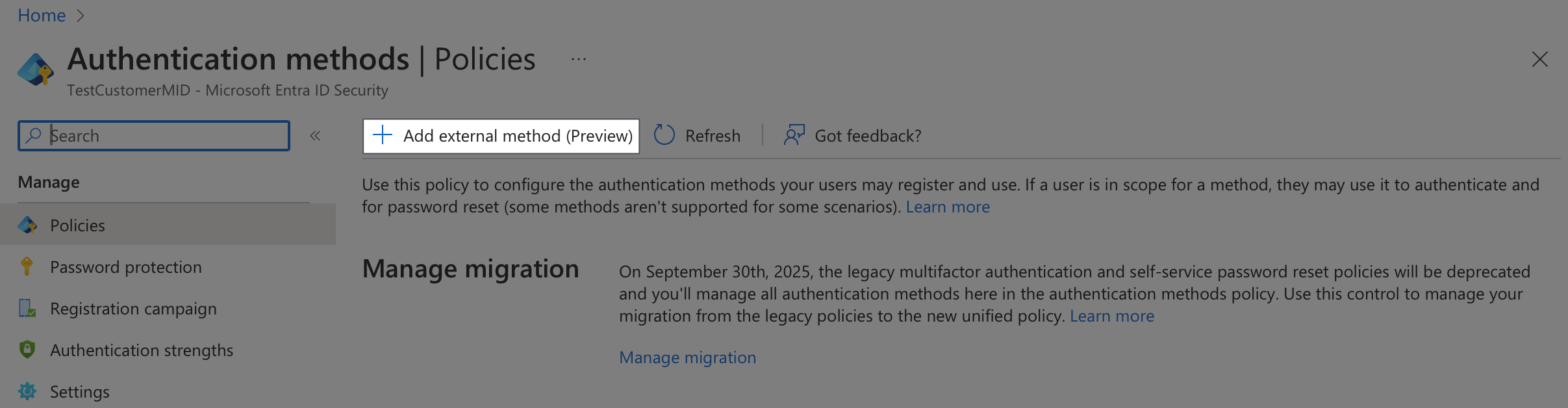 |
| 4 | Configure the External MFA Method On the "Add external MFA" page, enter a descriptive name for the MobileID method. The default name might be "Mobile ID" but you can choose a name that will make sense to your users since they'll see this during authentication. Note: The name must be unique among all external MFA methods in your Entra tenant, and you cannot change it after creation. Enter the information you have received from Swisscom in the corresponding field: Client ID, Discovery Endpoint, App ID. 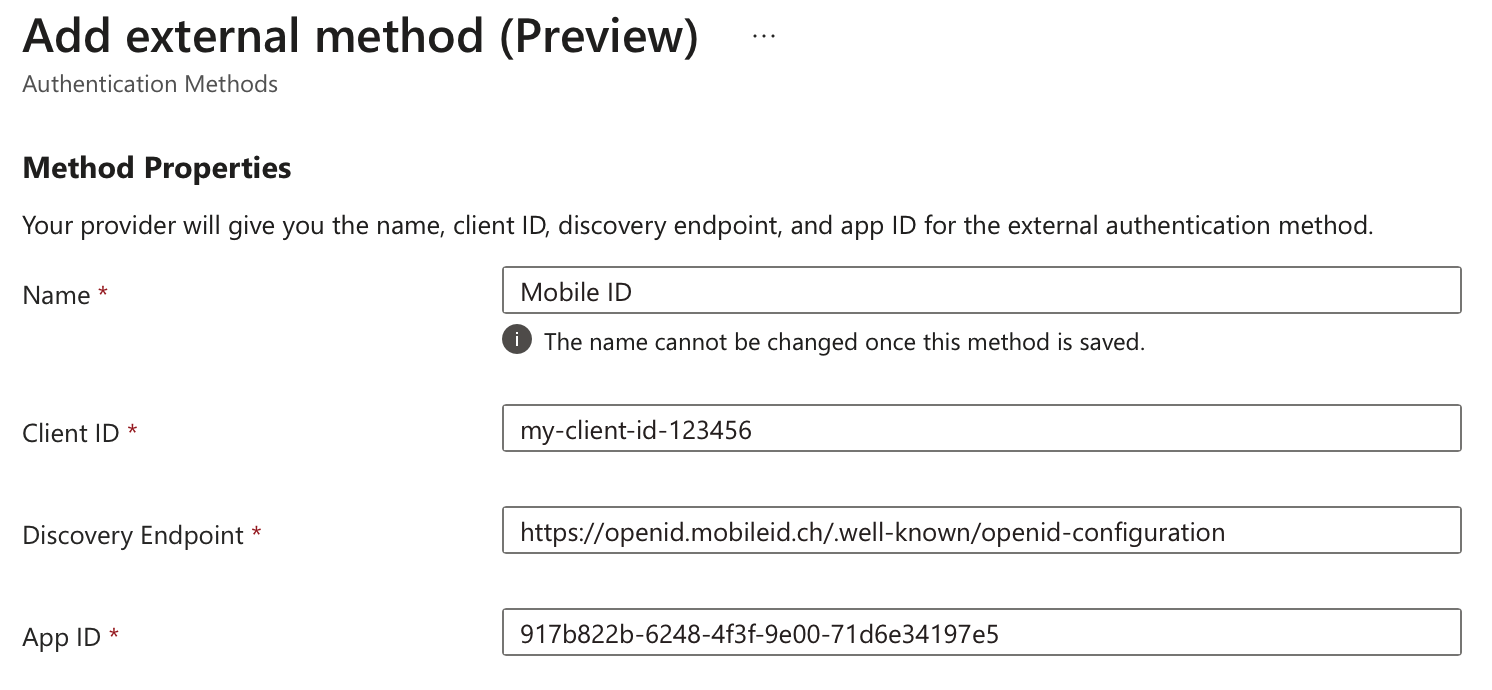 |
| 5 | Grant Admin Consent If the "Request admin consent" section shows a Request permission button instead of saying "Admin consent granted", click Request permission to authorize the MobileID external MFA application. If Microsoft first asks you to choose an account, select the administrator account that will grant consent. Then review the requested permission and click Accept. 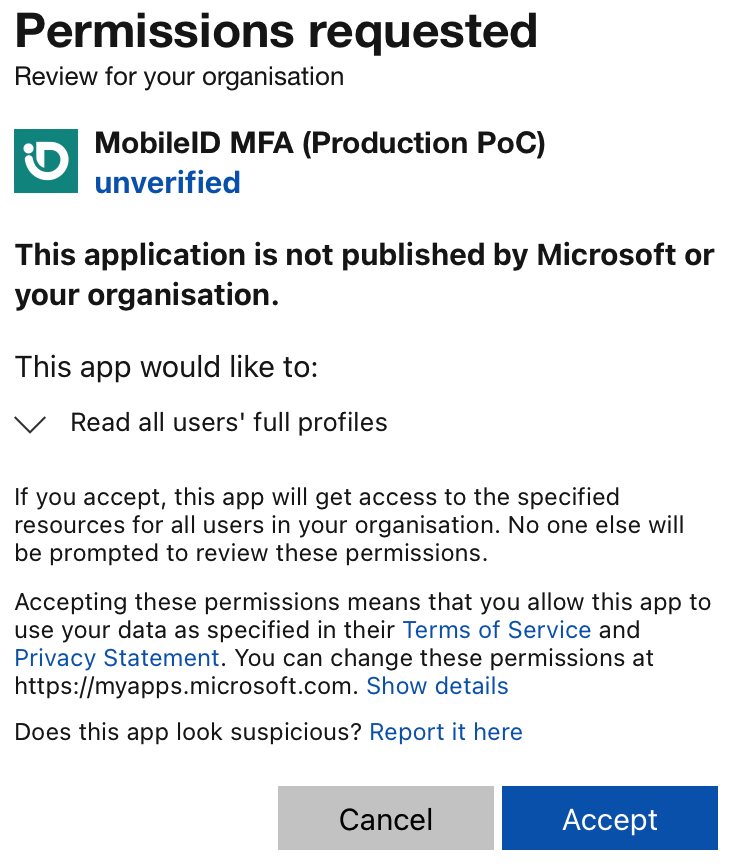 You need at least the Privileged Role Administrator role for this step. If you cannot grant consent yet, you can still save the method in a disabled state and return later; Microsoft does not allow the method to be enabled until consent is granted. You can verify the permissions under Identity → Applications → Enterprise applications by selecting the MobileID application and opening Permissions. 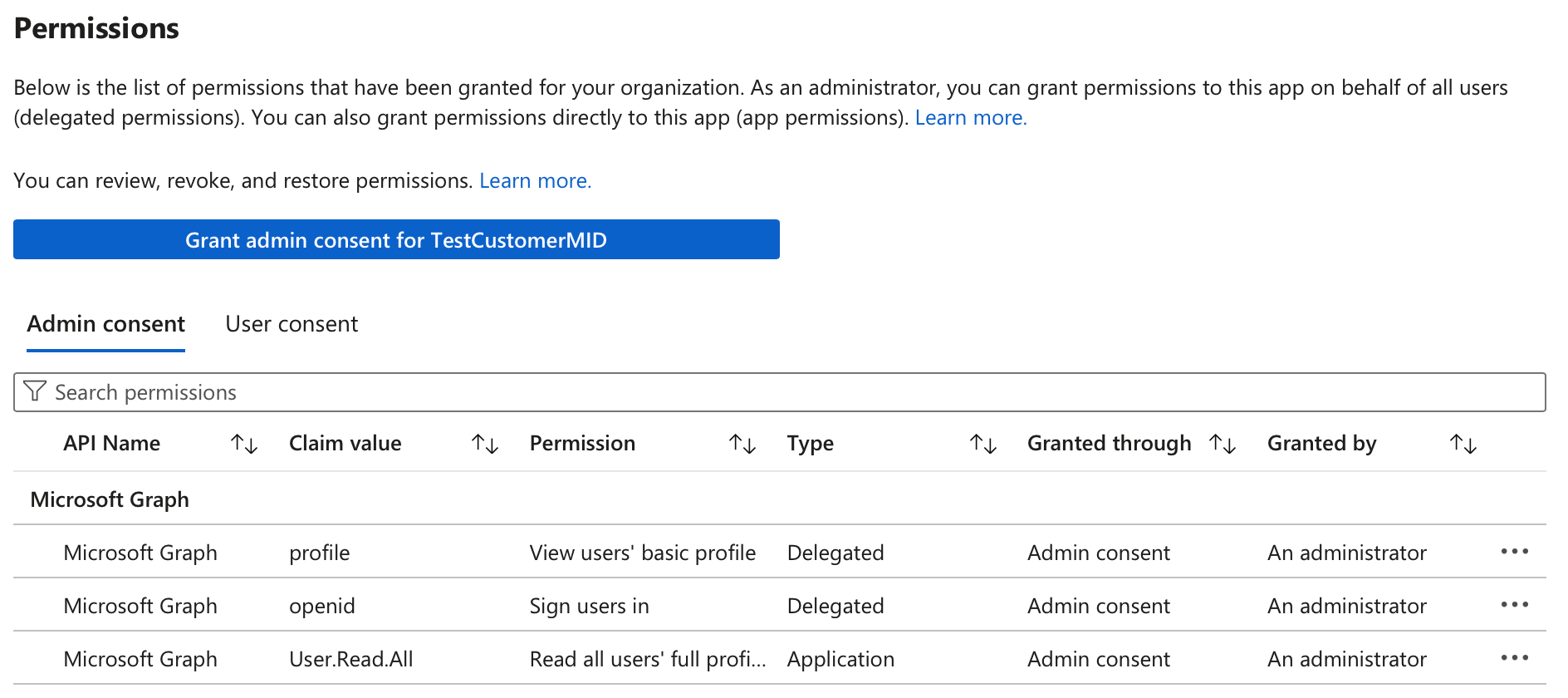 |
| 6 | Specify Users Before saving the new MobileID external method, decide which users should have access to it. By default, it will apply to all users, meaning any Entra ID user with a Conditional Access policy requiring multifactor authentication (MFA) will see MobileID as an option. To apply it to specific users, click + Add Target under the "Include" tab and choose Select Targets. On the "Add directory members" page, select one or more Entra ID directory groups that contain the users you want to target for MobileID authentication, then click Select. |
| 7 | Enable the Method If admin consent is already granted and you want to enable MobileID MFA right away, toggle Enable from "Off" to "On". If consent is still pending, leave the method disabled for now. |
| 8 | Save the Configuration After entering all the required details, click Save to create the new MobileID external method. |
Create and Apply a Conditional Access Policy
| Step | Description |
|---|---|
| 1 | Log in to Entra ID Go to the Microsoft Entra admin center and log in to your Entra ID tenant as at least a Conditional Access Administrator. If you're using the Azure portal, the navigation will differ slightly. |
| 2 | Navigate to Conditional Access Click on Conditional Access in the left-hand menu, then click + Create New Policy. If you are in the Azure portal, navigate to Security → Conditional Access → Policies. 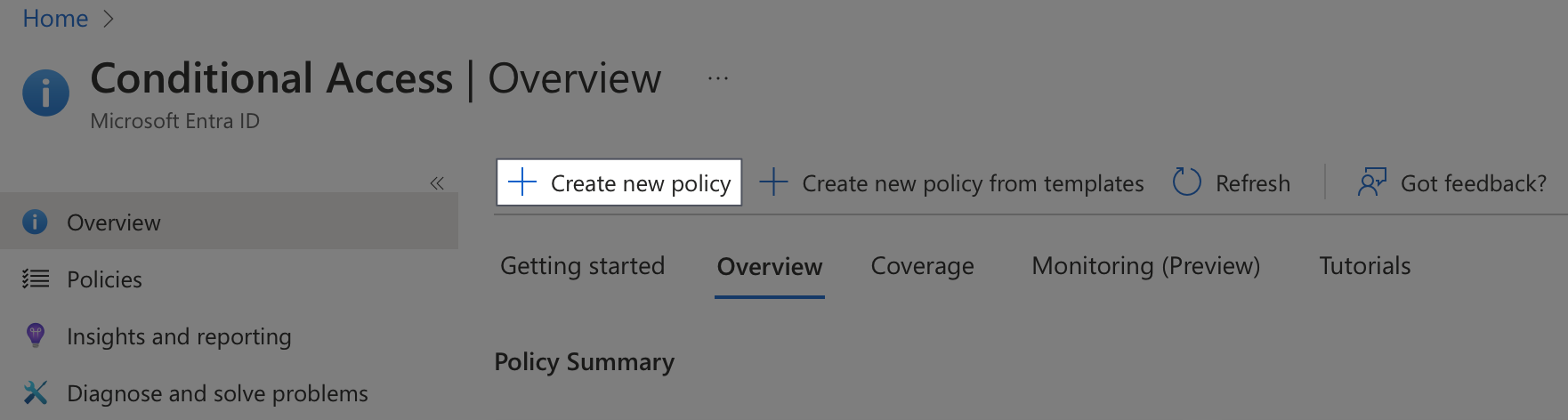 |
| 3 | Name the Policy Enter a descriptive name for the new policy, such as "MobileID MFA for Acme Users". 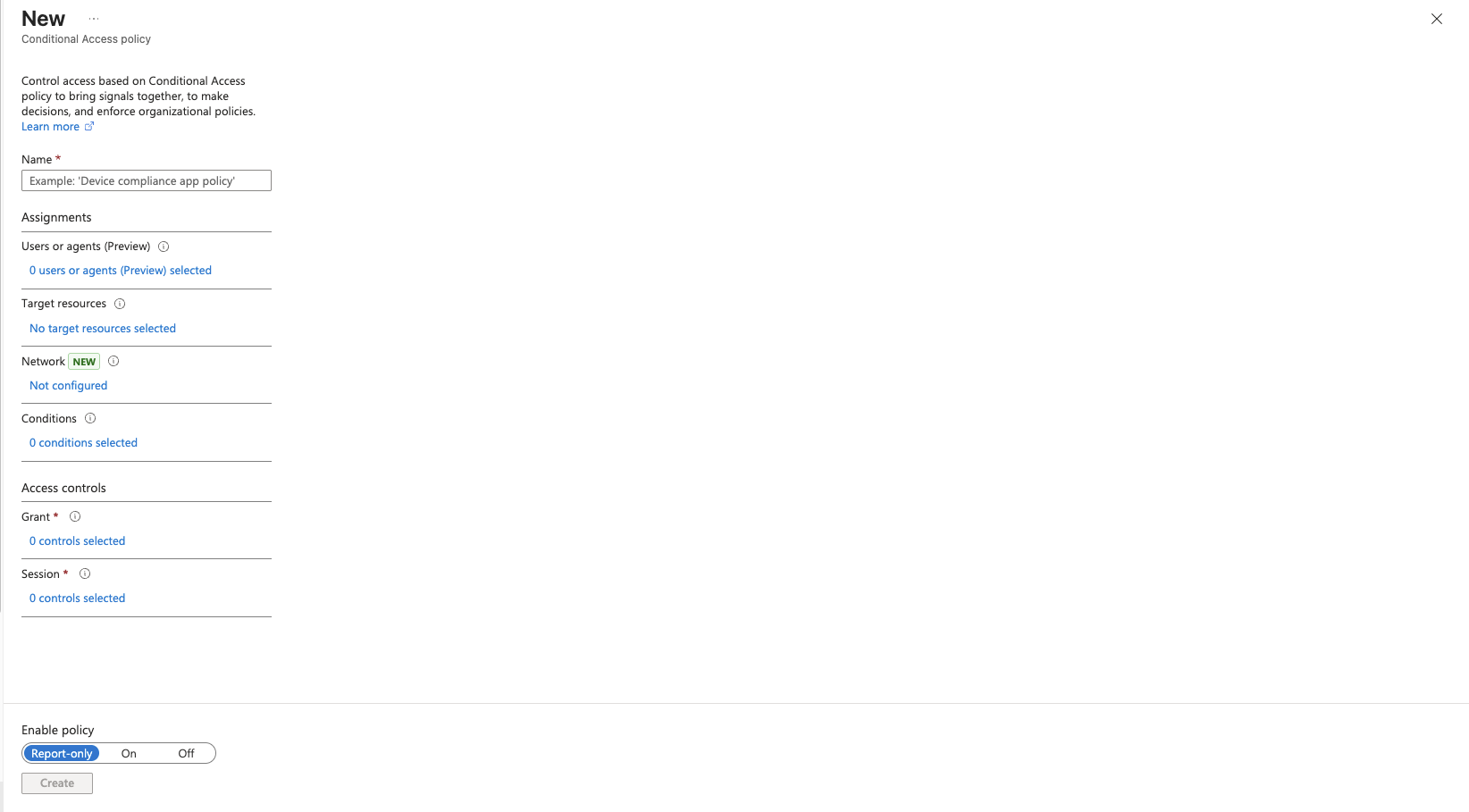 |
| 4 | Assign the Policy You can assign this policy to specific users or groups, Entra ID cloud apps, or other conditions like client platforms or networks. Example for assigning to users: Click Users under "Assignments", then select Users and groups on the "Include" tab. Choose Users and groups and click 0 users and groups selected to locate the users or Entra ID security groups for whom you want to enforce MobileID MFA. Select the users or groups, then click Select to apply your choices. If you targeted specific groups when creating the MobileID external method, ensure that you apply this new policy to the same groups. Example for assigning to resources: Click Target resources. On the "Include" tab, select Apps, and choose the Entra ID applications where you want MobileID MFA to be applied. |
| 5 | Configure Access Controls Click Grant under "Access controls", select Grant access, and check the box for Require multifactor authentication. Click Select when done. |
| 6 | Enable the Policy The final step is to enable the new MobileID conditional access policy. Click the "On" toggle switch under "Enable policy", then click Create. The policy will be created and applied to your selected groups or users, enforcing MFA via MobileID. |
WARNING
Avoid assigning the MobileID policy to all users or all cloud apps at the start, especially for tenant administrators, to prevent potential admin lockouts. Always test the policy with selected users first. Additionally, ensure you create a fail-safe Entra ID administrator account that is excluded from MobileID MFA policies to maintain uninterrupted access. Secure this account with a strong password and a different access condition, such as one based on a trusted network.
WARNING
If you are migrating from Entra Custom Controls, do not target the same users with both a Custom Control policy and an External MFA policy. Microsoft documents that affected users will have to satisfy both controls, which leads to a double redirect to the external provider.
Register Users for External MFA
External MFA is also a user sign-in method in Entra ID. Before broad rollout, decide how users will register it. Microsoft can surface registration in two valid ways: users can open + Add sign-in method in Security info, or Entra can launch the registration wizard during the first protected sign-in. The screenshot below shows the stable post-registration state after Mobile ID was already added successfully:
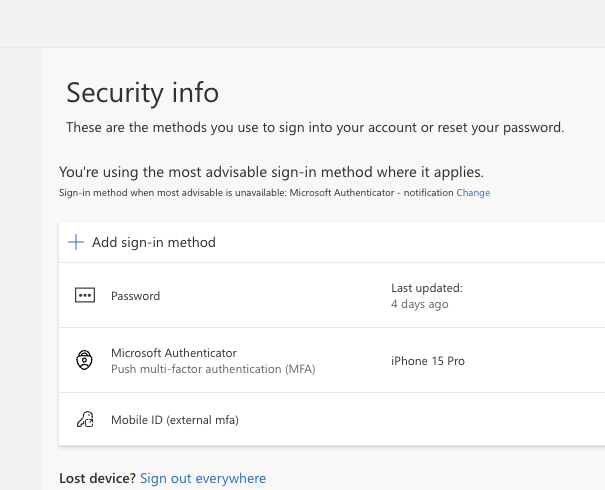
- Self-service in Security info: Users go to Security info, select + Add sign-in method, choose External Auth methods, and complete the Mobile ID challenge. After registration, the method appears in the list as Mobile ID (external mfa).
- Registration during sign-in: If a targeted user signs in and still needs registration, Entra can launch the registration wizard. If other methods are enabled, the user might need to choose I want to set up a different method → External Auth methods.
- Admin-assisted registration: In the Entra admin center, go to Users → All users → {user} → Authentication Methods → + Add Authentication Method → External authentication method.
Depending on the user's targeting and currently available methods, the Security info page can show different choices. The External Auth methods option only appears after the MobileID External MFA method is enabled and the user is included in its target scope.
If you want the first protected sign-in to be as smooth as possible, pre-register your pilot users before you begin testing.
Optional: Reduce Competing Entra Methods
If MobileID External MFA is the user's only usable second factor, Entra ID can select it directly. If users also have other methods and system-preferred MFA remains enabled, Entra ID usually offers another method first. Use the following options if you want MobileID to be the default experience for a pilot or dedicated user group:
| Step | Description |
|---|---|
| 1 | Disable the Microsoft Authenticator Registration Campaign In the Entra ID admin center, go to Entra ID → Authentication methods → Registration campaign. Click Edit, change the State to Disabled, and click Save. Alternatively, leave the registration campaign enabled and exclude the groups of users who are covered by the MobileID Conditional Access policy. |
| 2 | Review System-Preferred MFA Go to Entra ID → Authentication methods → Settings → System preferred multifactor authentication. If you want Entra to stop preferring Microsoft-native methods for this user population, click Edit, change the State to Disabled, and click Save. |
| 3 | Limit or Turn Off Microsoft Authenticator Go to Entra ID → Authentication methods → Policies → Microsoft Authenticator. On the Enable and Target tab, either narrow the targeted users/groups or toggle the method to Off for a dedicated MobileID rollout. If your users still depend on Microsoft Authenticator or Microsoft Entra self-service password reset, adjust the scope instead of disabling it tenant-wide. |
TIP
If Manage migration still shows Pre-migration or Migration in Progress, the Authentication methods policy is not your only control plane yet. Legacy MFA and SSPR settings can still expose Microsoft-native methods during registration and sign-in, even if you already narrowed the modern Authentication methods policy. For a clean MobileID pilot, review all active policy layers together and remove competing methods where appropriate.
TIP
When your tenant reaches Migration Complete, legacy MFA and SSPR method controls no longer apply. One exception remains: security questions are still managed in the legacy SSPR policy, so keep that in mind if your reset journey depends on them.
Test Your Setup
Log in to Entra ID using a user account that has been assigned the Conditional Access policy requiring MFA and is in scope for the newly created MobileID external method. For the cleanest test, pre-register the method in Security info first.
If you applied the MobileID Conditional Access policy to "All cloud apps", when you log into the Office portal (e.g., https://office.com) and submit your primary Entra ID credentials, Entra ID will either show your MobileID External MFA method as an option for identity verification or, if it is the only usable second factor, preselect it automatically. The displayed name will be the one you entered when setting up the MobileID External MFA method in Entra ID.
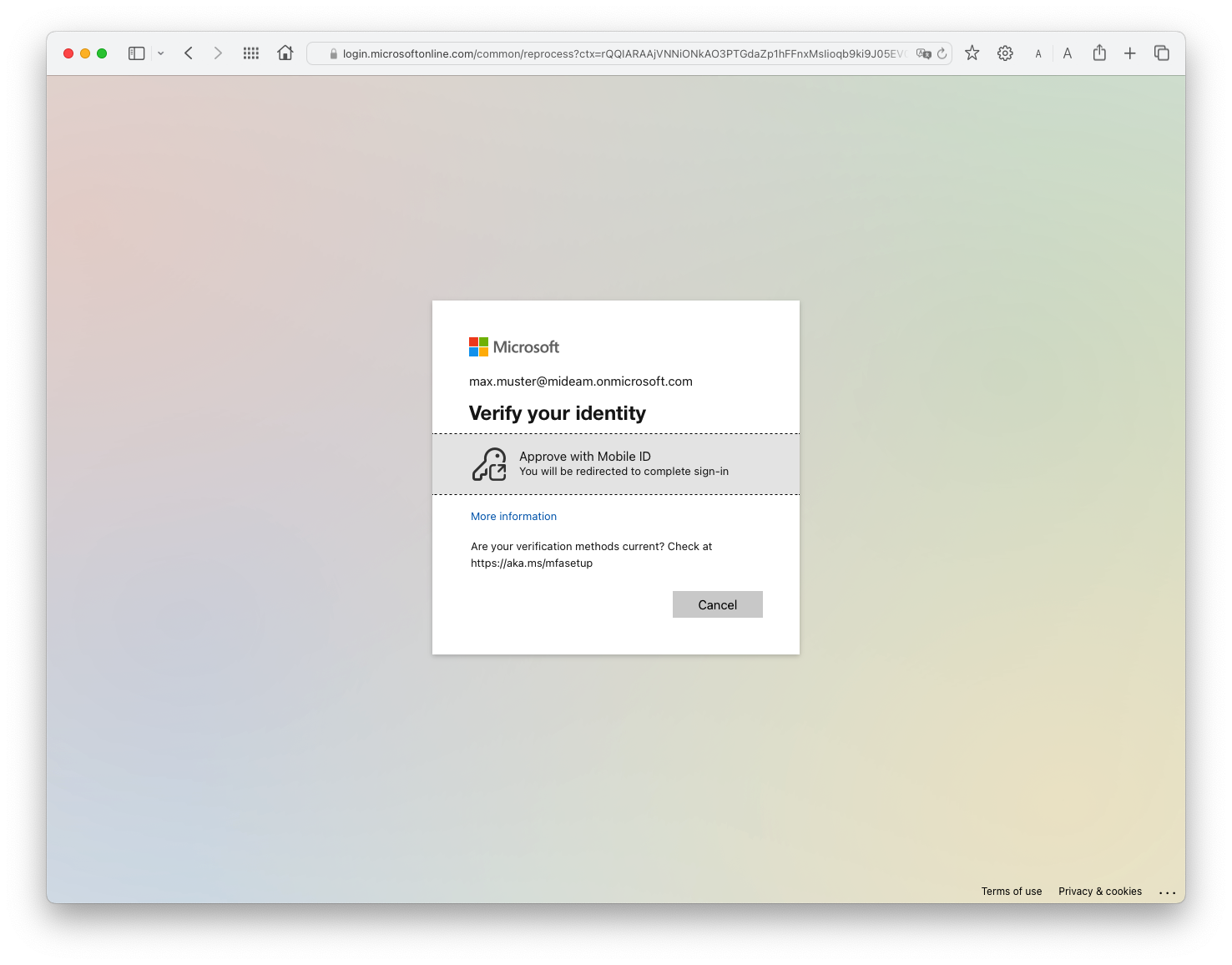
If Mobile ID is shown directly, choose the "Mobile ID" method to begin MobileID MFA authentication. If Entra preselects it because no other method is available, continue with the prompt that Entra displays.
If you have multiple Entra ID authentication methods enabled and system-preferred MFA is active, you may need to click "Other options" to view and select the MobileID method. This is especially common if the user also has Microsoft Authenticator, a Temporary Access Pass, or passkeys registered.
On first use, Entra may first send the user through the external method registration wizard before the standard MFA prompt appears. Once the method is available, the user is redirected to the MobileID provider journey, where MobileID either starts user enrolment or prompts for one of the enabled authentication methods, depending on your configuration.
Once you complete the MobileID authentication, you'll return to Entra ID to finish logging in to the application.
If your Conditional Access policy requiring MFA is only applied to specific applications, the initial login to the Office portal will not prompt for MobileID MFA. However, accessing the protected application within the Office portal or directly will trigger the MobileID MFA prompt.
WARNING
If you encounter the "Looks like something went wrong" error from Microsoft, the new External MFA settings might need additional time to propagate. If the error persists, you may request support from Swisscom.
Troubleshooting
Need some help? Please ask your commercial contact or get in touch with Backoffice.Security@swisscom.com to ask for support.
Microsoft Azure AD B2C
Azure Active Directory B2C is a Single-Sign-On (SSO) solution for any API, web, or mobile application. It enables any organization to provide their users with access using identities they already have, such as Mobile ID.
INFO
Mobile ID is officially supported by Microsoft Azure and the setup is described on their official article.
Microsoft will act as the secure front door to any of these applications and they will worry about the safety and scalability of the authentication platform. Azure will handle things like denial of service or brute force attacks, so that organizations can focus on their core business and stay out of the identity business.
Amazon Cognito
Amazon Cognito lets you add user sign-up, sign-in, and access control to your web and mobile apps quickly and easily. Amazon Cognito scales to millions of users and supports sign-in with social identity providers, such as Apple, Facebook, Google, and Amazon, and enterprise identity providers via SAML 2.0 and OpenID Connect.
TIP
This article explains how to integrate user sign-in with an OpenID Connect IdP such as Mobile ID.