
RIG Deployment
There are different types of container services you may use to deploy and run microservices like the RIG application in a high-availability setup.
We generally recommend using Kubernetes or similar container orchestration options to have a platform that automates the tasks related to the management, deployment, and scaling of container clusters.
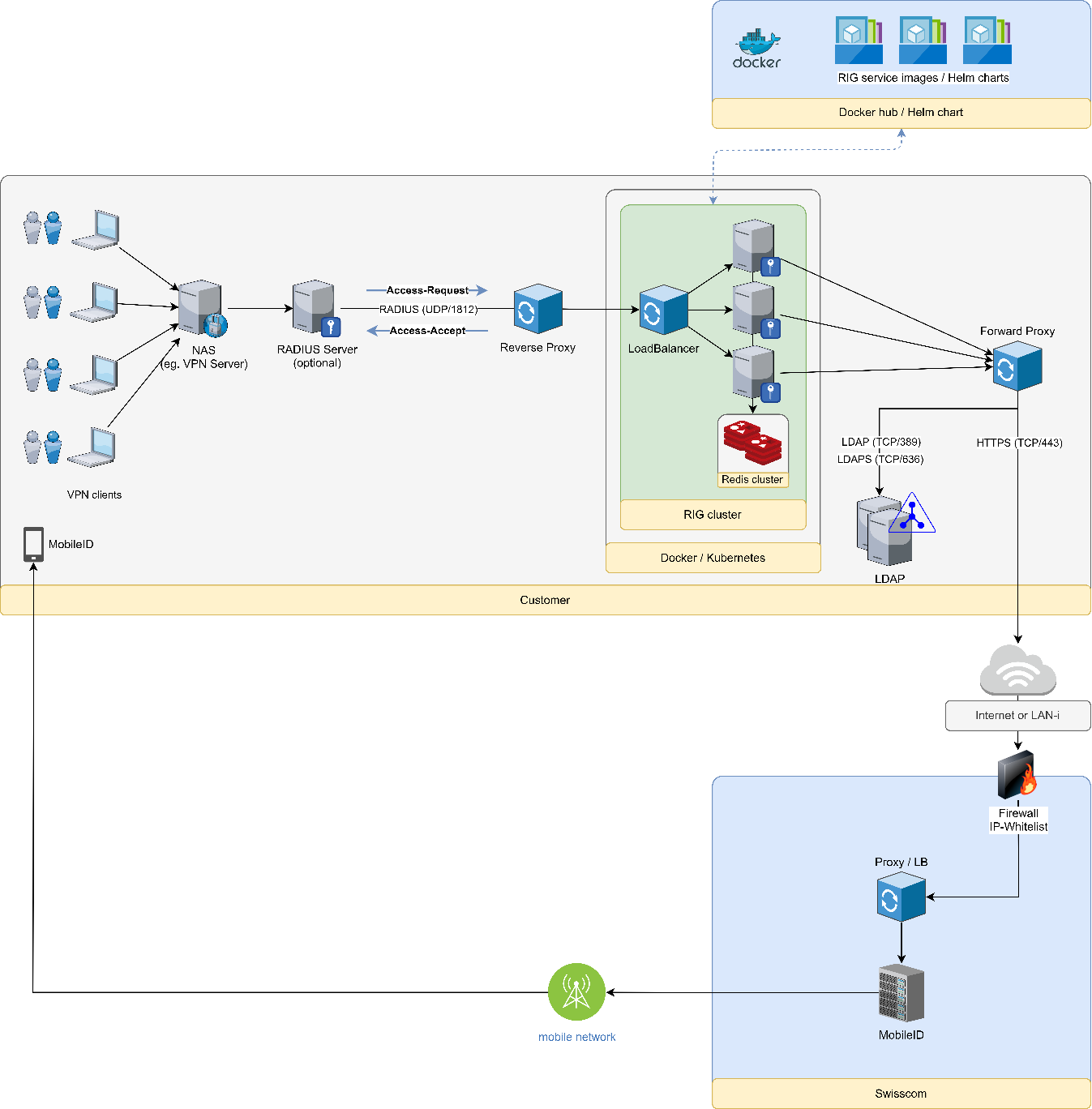
Docker images and Helm charts may be used. The latter one facilitates the packaging and deployment of more complex setups in target Kubernetes environments. This works if the customer is already operating a Docker/Swarm environment or a Kubernetes one.
If simpler setups are needed, the RIG service and dependent components can be delivered and installed as standard software applications.
Preconditions
The following points must be considered before you proceed with the deployment.
General Requirements
- A Mobile ID contract exists. You know your
AP_IDand your API key (PFX/PKCS#12 format). - A Directory Service (LDAP) exists, which contains user attributes such as name and phone number.
- An appropriate security concept exists (e.g. secured network communication, hardening, etc.).
NAS Requirements
- The NAS RADIUS Access-Request packet contains either a unique NAS-Identifier attribute or it has a unique and static source IP address/range. RIG will pick the configuration based on this info.
- The RADIUS client timeout shall be set to 60 seconds. This ensures enough time for the user to respond to the Mobile ID authentication request.
- The RADIUS client retry shall be set to no more than 1. The client should not retry because there might still be a Mobile ID authentication session ongoing.
Connectivity Requirements
Connectivity must be allowed as follows:
- RADIUS (UDP/1812) — Requests from your NAS (e.g. VPN server) to the RIG application (or the UDP network load balancer that forwards the requests to the RIG application nodes).
- LDAPS (TCP/636) — From the RIG application to your LDAP server.
- HTTPS (TCP/443) — From the RIG application to the Mobile ID API endpoint at
mobileid.swisscom.com(Internet) or195.65.233.218(EC). - REDIS (TCP/6379) — Between the RIG application nodes and the Redis database cluster.
- HTTP (TCP/80) — Local connectivity for the Docker health check (optional).
You can verify the LDAP connectivity using the following command on the node where the RIG container application is running. You may also use ldaps (port 636) instead of ldap (port 389):
ldapwhoami -x -w <passwd> -D "cn=<tbd>,ou=<tbd>,dc=<tbd>,dc=<tbd>" -H ldap://<ldap.myserver.com>:389When troubleshooting LDAP configuration issues, you can use ldapsearch to query user attributes directly:
ldapsearch -LLL -H ldap://<ldap.myserver.com>:389 \
  -b "ou=<tbd>,dc=<tbd>,dc=<tbd>" \
  -D "cn=<admin>,dc=<tbd>,dc=<tbd>" \
  -w <passwd> \
  -s sub "(&(objectclass=inetOrgPerson)(uid=<user>))"
You can verify the Mobile ID API connectivity using the following command on the node where the RIG container application is running:
openssl s_client -connect mobileid.swisscom.com:443Note: The firewall on the Mobile ID API side has an IP-based whitelist. Therefore, the source IP address/range of the request sent to the Mobile ID API must be in the whitelist. If the IP address is unknown, the packet will be dropped and your request will time out.
Configuration
RIG supports two configuration sources for customer settings and I18N error messages:
- KeyValueStorage (Redis) — Customer configurations and I18N messages are stored as JSON in Redis. This is the recommended approach for production and multi-node deployments, as configurations can be updated at runtime.
- AppSettings (Environment Variables) — All configuration is provided via environment variables. This is suitable for single-node deployments without Redis.
For detailed configuration options including customer setup, LDAP integration, geofencing, Fortinet VSA, MFA method mapping, SMS notifications, and I18N error messages, see the Configuration page.
Docker Run
You can pull the Docker images from Docker Hub or from Amazon ECR.
For high availability, you will need the following components, running at least two instances each:
- Mobile ID RADIUS Interface Gateway application — Docker Hub or Amazon ECR
- Redis database using
redis(requires 3 nodes for HA; alternatively,keydbmay be used) - Redis web management tool using
redis-commanderto manage the Redis database content - UDP network load balancer using
nginxwith a customnginx.confconfiguration
How to pull an image from Docker Hub:
docker pull mobileidch/mid-radius-rigHow to pull an image from Amazon ECR:
docker pull public.ecr.aws/mobileidch/mid-radius-rigHow to run a Docker application:
docker run -d -p 1812:1812/udp --env-file <my-env-file> mobileidch/mid-radius-rigEnvironment File
Below is an example .env file for a clustered RIG setup with Redis. Change the example according to your preferences.
At least the following parameters must be updated:
MID_CLIENT_CERTIFICATE— Your base64-encoded Mobile ID API key (PFX/PKCS#12, without password).bashbase64 -w 0 <MyKey.pfx>Schnittstellen__MobileIdClient__Host— The Mobile ID API endpoint:https://mobileid.swisscom.com(Internet) orhttps://195.65.233.218(Enterprise Connect).Schnittstellen__KeyValueStorage__ConnectionString— Your Redis connection string.
# Application Configuration
ASPNETCORE_ENVIRONMENT=Production

# Base64-encoded MobileID Client Key (PFX/P12, PKCS#12, without password)
MID_CLIENT_CERTIFICATE=MIIJW***

# Serilog Log Configuration
# Valid levels: Verbose -> Debug -> Information -> Warning -> Error -> Fatal
Serilog__MinimumLevel__Default=Information
Serilog__MinimumLevel__Override__Microsoft=Warning
Serilog__MinimumLevel__Override__Microsoft.Hosting.Lifetime=Warning
Serilog__MinimumLevel__Override__Microsoft.Extensions.Diagnostics.HealthChecks=Error
Serilog__MinimumLevel__Override__Flexinets.Radius.RadiusServer=Information
Serilog__MinimumLevel__Override__Flexinets.Radius.Core=Information
Serilog__WriteTo__0__Args__outputTemplate={Timestamp:yyyy-MM-dd HH:mm:ss.fff} {Level:u4} [{CorrelationId}] {SourceContext} - {Message:lj}{NewLine}{Exception}

# WebServer Port (used for health check endpoint)
WebServer__Port=80

# RADIUS Server Configuration
RadiusServer__Port=1812
RadiusServer__OtpValiditySeconds=120
RadiusServer__OtpMaxAllowedLoginAttempts=3
RadiusServer__DuplicatePacketHandlingExpirationSeconds=120

# Configuration Sources (KeyValueStorage = Redis, AppSettings = Environment Variables)
RadiusServer__CustomerConfigSource=KeyValueStorage
RadiusServer__I18nMessagesSource=KeyValueStorage

# Key-Value Storage (Redis)
Schnittstellen__KeyValueStorage__Storage=Redis
Schnittstellen__KeyValueStorage__ConnectionString=<redis-url>:6379,password=<password>,ssl=False,abortConnect=False

# MobileID Client
Schnittstellen__MobileIdClient__Host=https://mobileid.swisscom.com
Schnittstellen__MobileIdClient__ClientCertFromEnv=true
Schnittstellen__MobileIdClient__TransactionTimeoutSeconds=60
Schnittstellen__MobileIdClient__SignatureTrust__ValidateCertTrust=true
Schnittstellen__MobileIdClient__SignatureTrust__ValidateSignature=true
Schnittstellen__MobileIdClient__SignatureTrust__ValidateSignaturePayload=true
Schnittstellen__MobileIdClient__ServerTrust__ValidateCertTrust=true

# TrustStore Configuration
# Base64-encode each ROOT CA certificate (PEM format):
# $ base64 -w 0 Swisscom_Root_CA_4.cer
Schnittstellen__MobileIdClient__SignatureTrust__TrustStore__0=<base64-Swisscom-Root-CA-4>
Schnittstellen__MobileIdClient__SignatureTrust__TrustStore__1=<base64-Swisscom-Root-CA-2>
Schnittstellen__MobileIdClient__ServerTrust__TrustStore__0=<base64-SwissSign-Gold-CA-G2>
TIP
The TrustStore certificates (Swisscom Root CA 4, Swisscom Root CA 2, SwissSign Gold CA-G2) are pre-encoded in the sample files available on GitHub. You can copy the base64 values directly from there.
Single-Node Deployment (without Redis)
For deployments that only use SIM and/or APP authentication (no OTP), RIG can run as a single container without Redis. In this mode, set the storage to InMemory and provide the customer configuration and I18N messages via environment variables:
# Key-Value Storage (InMemory - no Redis required)
Schnittstellen__KeyValueStorage__Storage=InMemory

# Configuration Sources (AppSettings = Environment Variables)
RadiusServer__CustomerConfigSource=AppSettings
RadiusServer__I18nMessagesSource=AppSettings
The customer configuration is then provided as indexed environment variables. See the Configuration page for the full environment variable reference.
WARNING
OTP authentication is not supported without Redis, as OTP session state requires shared storage across request cycles.
Docker Compose
With Compose, you can create a YAML file to define the services and, with a single command, spin everything up or tear it all down. The following example starts a complete RIG cluster with all required components.
The services are:
- Mobile ID RADIUS Interface Gateway application — from Docker Hub (or alternatively from Amazon ECR)
- Redis database using
redis(or alternativelykeydbmay be used) - Redis web management tool using
redis-commanderto manage the Redis database content (customer configs, I18N messages) - UDP network load balancer using
nginxwith a customnginx.confconfiguration
docker-compose.yml
Update MID_CLIENT_CERTIFICATE, Schnittstellen__KeyValueStorage__ConnectionString, and Schnittstellen__MobileIdClient__Host according to your setup.
services:

  mid-radius-rig:
    # Option 1: Pull image from Docker Hub
    image: mobileidch/mid-radius-rig:latest
    # Option 2: Pull image from AWS ECR
    # image: public.ecr.aws/r4c1w5d3/mid-radius-rig:latest
    hostname: "rig_gateway"
    ports:
      - "1812/udp"
      # Health check endpoint mapped to port 8055 on Docker host
      - "8055:80/tcp"
    links:
      - redis
    restart: always
    environment:
      - Serilog__MinimumLevel__Default=Information
      - Serilog__MinimumLevel__Override__Microsoft=Warning
      - Serilog__MinimumLevel__Override__Microsoft.Hosting.Lifetime=Warning
      - Serilog__MinimumLevel__Override__Microsoft.Extensions.Diagnostics.HealthChecks=Error
      - Serilog__MinimumLevel__Override__Flexinets.Radius.RadiusServer=Information
      - Serilog__MinimumLevel__Override__Flexinets.Radius.Core=Information
      - Serilog__WriteTo__0__Args__outputTemplate={Timestamp:yyyy-MM-dd HH:mm:ss.fff} {Level:u4} [{CorrelationId}] {SourceContext} - {Message:lj}{NewLine}{Exception}
      - ASPNETCORE_ENVIRONMENT=Production
      - MID_CLIENT_CERTIFICATE=<base64-encoded-pfx-nopassword>
      - RadiusServer__Port=1812
      - RadiusServer__OtpValiditySeconds=120
      - RadiusServer__OtpMaxAllowedLoginAttempts=3
      - RadiusServer__CustomerConfigSource=KeyValueStorage
      - RadiusServer__I18nMessagesSource=KeyValueStorage
      - RadiusServer__DuplicatePacketHandlingExpirationSeconds=120
      - Schnittstellen__KeyValueStorage__Storage=Redis
      - Schnittstellen__KeyValueStorage__ConnectionString=redis:6379,password=<password>,ssl=False,abortConnect=False
      - Schnittstellen__MobileIdClient__Host=https://mobileid.swisscom.com
      - Schnittstellen__MobileIdClient__ClientCertFromEnv=true
      - Schnittstellen__MobileIdClient__SignatureTrust__ValidateCertTrust=true
      - Schnittstellen__MobileIdClient__SignatureTrust__ValidateSignature=true
      - Schnittstellen__MobileIdClient__SignatureTrust__ValidateSignaturePayload=true
      - Schnittstellen__MobileIdClient__ServerTrust__ValidateCertTrust=true
      - Schnittstellen__MobileIdClient__TransactionTimeoutSeconds=60
      # TrustStore certificates (see env file sample for base64 values)
      - Schnittstellen__MobileIdClient__SignatureTrust__TrustStore__0=<base64-Swisscom-Root-CA-4>
      - Schnittstellen__MobileIdClient__SignatureTrust__TrustStore__1=<base64-Swisscom-Root-CA-2>
      - Schnittstellen__MobileIdClient__ServerTrust__TrustStore__0=<base64-SwissSign-Gold-CA-G2>
    healthcheck:
      test: ["CMD", "curl", "-f", "http://localhost/health"]
      interval: 20s
      retries: 3
      start_period: 10s
      timeout: 3s

  redis:
    image: redis:latest
    container_name: "rig_redis"
    hostname: "rig_redis"
    ports:
      - "6379:6379"
    command: ["redis-server", "--appendonly", "yes"]
    volumes:
      - redis-data:/data
    restart: always

  redis-commander:
    image: rediscommander/redis-commander:latest
    container_name: "rig_redis_commander"
    environment:
      - REDIS_HOSTS=local:redis:6379
      - HTTP_USER=admin
      - HTTP_PASSWORD=<your-password>
    ports:
      - 8081:8081
    depends_on:
      - redis
    restart: always

  nginx:
    image: nginx:latest
    container_name: "rig_nginx"
    volumes:
      - ./nginx.conf:/etc/nginx/nginx.conf
    depends_on:
      - mid-radius-rig
    ports:
      - "11812:1812/udp"

volumes:
  redis-data:
nginx.conf
The following nginx.conf configures a UDP load balancer that forwards RADIUS traffic to the RIG container(s). Place this file in the same directory as docker-compose.yml.
user  nginx;

events {
    worker_connections   1000;
}
stream {
    upstream rig-nginx {
        server mid-radius-rig:1812;
    }

    server {
        listen 1812 udp;
        proxy_pass rig-nginx;
    }
}
Starting the Cluster
Make sure that both docker-compose.yml and nginx.conf exist in the same directory, then run:
docker-compose up --scale mid-radius-rig=3This starts 3 RIG instances behind the nginx UDP load balancer, with Redis for shared state. The health check endpoint is available at http://localhost:8055/health.
You can verify the health check status with:
docker inspect --format='{{json .State.Health}}' <container-name>Integration Scenarios
This chapter describes four different integration scenarios:
MFA with Mobile Signature
In the first scenario, a user wants to establish a VPN connection and the backend is configured to use an existing RADIUS server for user authentication and authorization, coupled with the RADIUS Interface Gateway (RIG) service for multi-factor authentication. The user is an active Mobile ID user, so a mobile signature is acquired in the process and, depending on the outcome of that signature validation, the user gets a new VPN connection established.
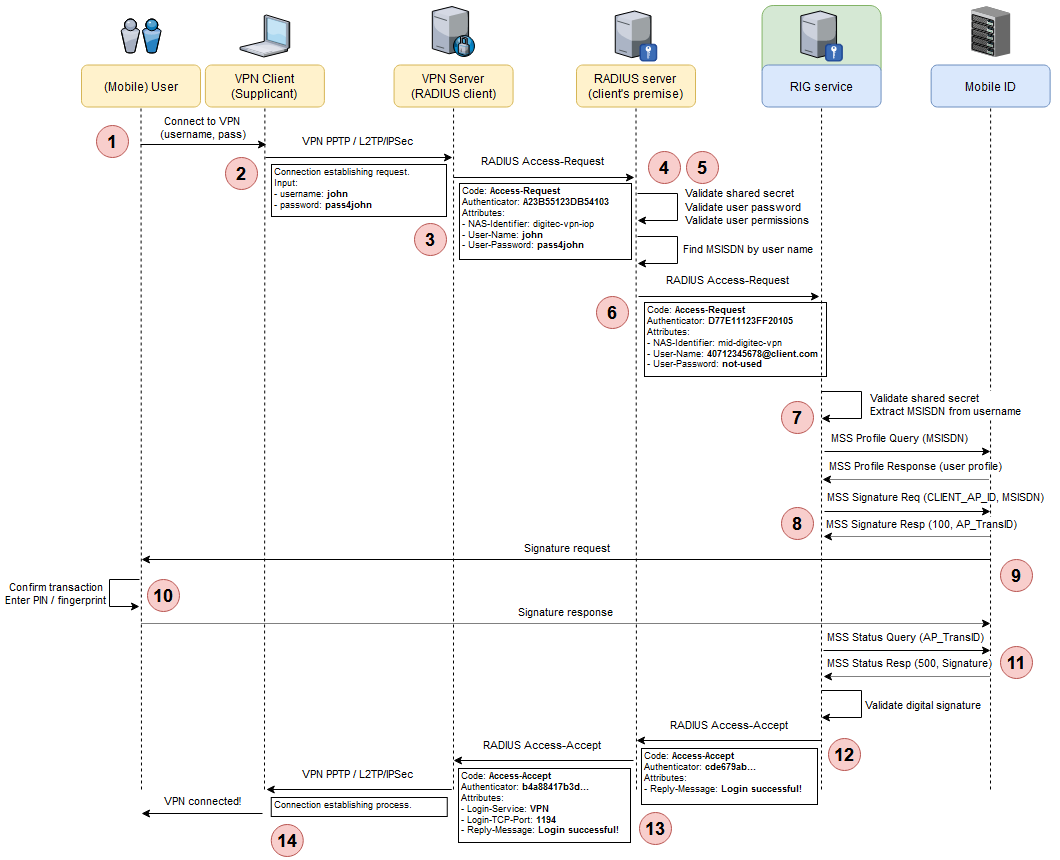
Step 1 — The user opens the VPN client (the Supplicant) on his/her laptop and clicks on the desired VPN connection. Since the user does not want to store credentials locally, the VPN client asks for the username and password. The user enters the requested credentials.
Step 2 — The VPN client initiates a specific protocol connection (e.g. PPTP, L2TP/IPSec, etc.) to the VPN server, transmitting the username and password. The VPN server is configured to use RADIUS as the authentication protocol.
Step 3 — The VPN server creates a RADIUS Access-Request packet using its RADIUS shared secret, the username and password received from the VPN client, and the type of service the user requested: VPN. The RADIUS packet is sent to the client's backend RADIUS server.
Code: Access-Request
Identifier: 15
Authenticator: D23B55123DB54103
Attributes:
  - NAS-Identifier: digitec-vpn-iop
  - User-Name: john
  - User-Password: md5("secret"+Authenticator)
Step 4 — The RADIUS server validates all aspects of the received request: the shared secret, the user password, and permissions. It also checks if there are other extra authentication steps required for this user. It finds that this user has multi-factor authentication (MFA) enabled via Mobile ID.
Step 5 — To use Mobile ID as MFA, the flow needs to go through the RIG service. For this to happen, the RADIUS server needs the MSISDN of the currently authenticating user. It makes a local query to its data store and finds the MSISDN of the user based on the given username.
An alternative at this step is for mobile users to directly enter the username as a construct of <msisdn>@<domain> (e.g. 40712345678@client.com) and directly provide that value to the VPN client in Step 1 above. Since this username is also paired to a matching password as per the RADIUS flow, having the user enter a wrong MSISDN (by typo or intentionally) is unlikely.
Step 6 — The RADIUS server creates a second RADIUS Access-Request packet, similar to the one in Step 3. In this case, the RADIUS server acts as a client for the next RADIUS server in the chain: the RIG service. The packet contains the secret shared between this RADIUS server and the RIG service. The username is formatted as <msisdn>@<domain> (e.g. 40712345678@client.com). The user password is not used at this step, so it is filled in with filler text (not-used).
Code: Access-Request
Identifier: 21
Authenticator: CCEB551E2254AAB
Attributes:
  - NAS-Identifier: mid-digitec-vpn
  - User-Name: 40712345678@client.com
  - User-Password: md5("secret"+Authenticator)
Step 7 — The RIG service receives the request and proceeds to validate the NAS identifier and the shared secret of the client. Based on the client's configuration, the RIG service decides how to proceed and what parameters to use for the next step:
- Based on the authentication method algorithm configured for this client, an array of possible methods is selected. These can be any of SIM-based digital signature, app-based digital signature, OTP over SMS, or any other method that will be implemented in future versions.
- From the User-Name received from the RADIUS client, the user's MSISDN is extracted.
- Based on an MSS Profile Query for the user's MSISDN, the appropriate method of authentication is selected. If the user has an active Mobile ID account, the method could be SIM- or App-based digital signature. If the user has issues with the Mobile ID account or has no such account, the chosen method could be OTP over SMS. For the current use case, the user has an active Mobile ID account, so the flow continues with a SIM/App-based digital signature authentication (see Authentication Methods for more information).
- The AP ID, AP password, signature profile, and the DTBS are extracted and prepared from the client's configuration.
Step 8 — The RIG service connects to Mobile ID and sends the MSS Signature Request. The operation is asynchronous, so it receives an instant response along with an AP_TransID to use in subsequent polls.
Step 9 — The Mobile ID service sends a signature request to the user's mobile device (via SIM or mobile app).
Step 10 — The user confirms the transaction and authenticates via PIN or fingerprint. A digital signature is created on the mobile device and returned to Mobile ID.
Step 11 — In one of its MSS Status Query polls, the RIG service receives the response with a finished signature status and the digital signature content.
Step 12 — After validating the signature, the RIG service decides to accept the user's authentication request. At this point, there are no further checks performed (e.g. proper user authorization) as the RIG service is not in the position of authorizing the user. Therefore, it creates a RADIUS Access-Accept packet with an access reply message (created from the client's configuration) and sends the packet back to the RADIUS client that called it.
Code: Access-Accept
Identifier: 21
Authenticator: cc76edab453b554cd7e7a
Attributes:
  - Reply-Message: Authentication successful!
Step 13 — The RADIUS client (i.e. the client's RADIUS server) combines the RIG service's Access-Accept packet with its internal evaluation of the user's access request and decides to accept the user's request. A new RADIUS Access-Accept packet is created and returned to the VPN server.
Code: Access-Accept
Identifier: 15
Authenticator: ec89a776d8cdea8675ac7
Attributes:
  - Login-Service: VPN
  - Reply-Message: Authentication successful!
Step 14 — The VPN server receives the Access-Accept packet and proceeds to provide the user with the requested service (i.e. establishes the VPN connection).
MFA with SMS OTP
For mobile users that do not have a Mobile ID account or have issues with their account, the RIG service can fall back to a less secure authentication method that uses a one-time password (OTP) generated by the RIG service, sent to the mobile user via an SMS text message, and then requested back in a RADIUS Access-Challenge round trip. This method can function both as a fallback method and as a main method of authentication, depending on the RADIUS client configuration at RIG service level.
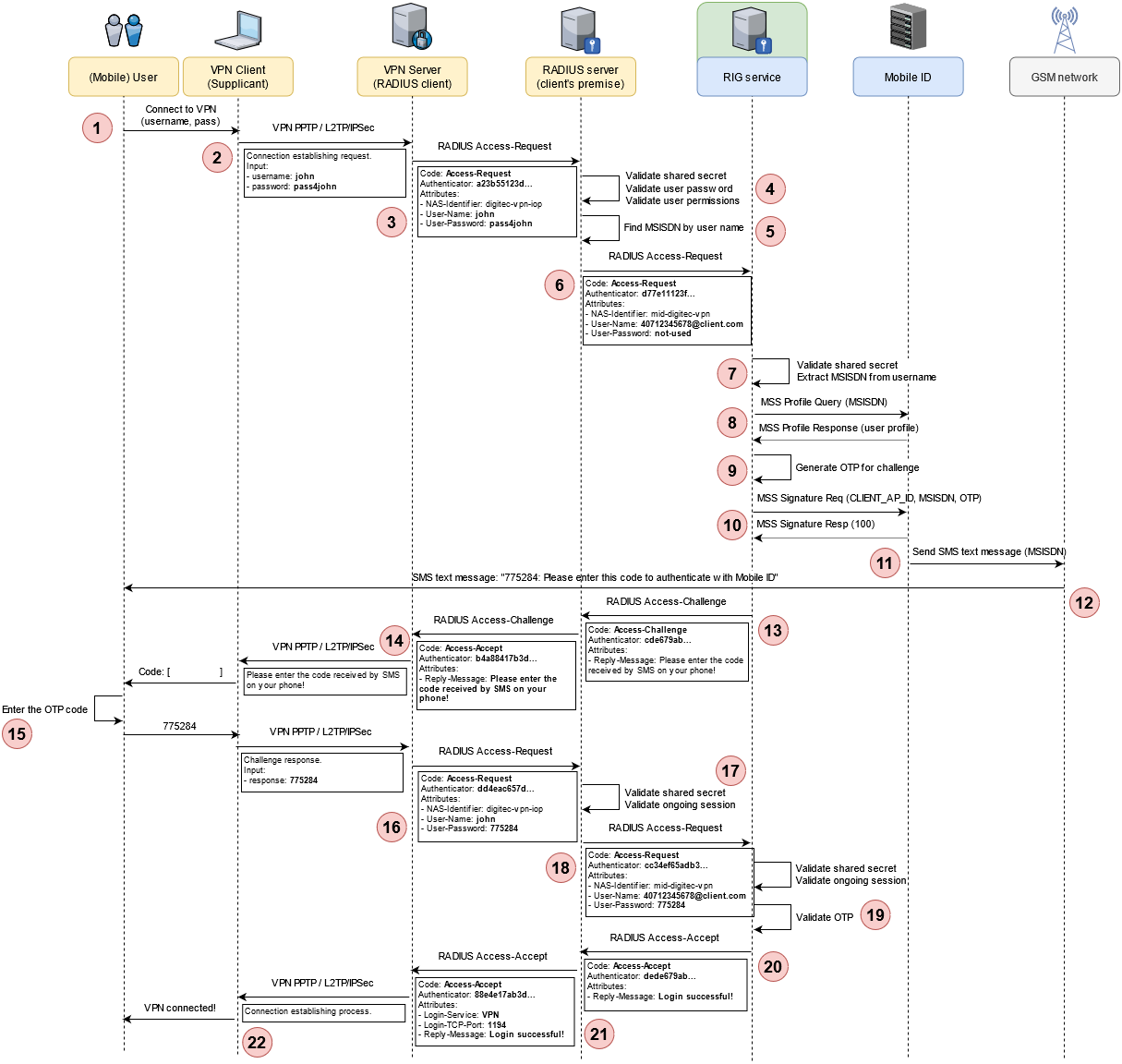
Step 1 — The user opens the VPN client (the Supplicant) on his/her laptop and clicks on the desired VPN connection. Since the user does not want to store credentials locally, the VPN client asks for the username and password. The user enters the requested credentials.
Step 2 — The VPN client initiates a specific protocol connection (e.g. PPTP, L2TP/IPSec, etc.) to the VPN server, transmitting the username and password. The VPN server is configured to use RADIUS as the authentication protocol.
Step 3 — The VPN server creates a RADIUS Access-Request packet using its RADIUS shared secret, the username and password received from the VPN client, and the type of service the user requested: VPN. The RADIUS packet is sent to the client's backend RADIUS server.
Code: Access-Request
Authenticator: a23b55123d...
Attributes:
  - NAS-Identifier: digitec-vpn-iop
  - User-Name: john
  - User-Password: pass4john
Step 4 — The RADIUS server validates all aspects of the received request: the shared secret, the user password, and permissions. It also checks if there are other extra authentication steps required for this user. It finds that this user has multi-factor authentication (MFA) enabled via Mobile ID.
Step 5 — To use Mobile ID as MFA, the flow needs to go through the RIG service. For this to happen, the RADIUS server needs the MSISDN of the currently authenticating user. It makes a local query to its data store and finds the MSISDN of the user based on the given username.
An alternative at this step is for mobile users to directly enter the username as a construct of <msisdn>@<domain> (e.g. 40712345678@client.com) and directly provide that value to the VPN client in Step 1 above. Since this username is also paired to a matching password as per the RADIUS flow, having the user enter a wrong MSISDN (by typo or intentionally) is unlikely.
Step 6 — The RADIUS server creates a second RADIUS Access-Request packet, similar to the one in Step 3. In this case, the RADIUS server acts as a client for the next RADIUS server in the chain: the RIG service. The packet contains the secret shared between this RADIUS server and the RIG service. The username is formatted as <msisdn>@<domain> (e.g. 40712345678@client.com). The user password is not used at this step, so it is filled in with filler text (not-used).
Code: Access-Request
Authenticator: d77e11123f...
Attributes:
  - NAS-Identifier: mid-digitec-vpn
  - User-Name: 40712345678@client.com
  - User-Password: not-used
Step 7 — The RIG service receives the request and proceeds to validate the NAS identifier and the shared secret of the client. Based on the client's configuration, the RIG service decides how to proceed and what parameters to use for the next step:
- Based on the authentication method algorithm configured for this client, an array of possible methods is selected. These can be any of SIM-based digital signature, app-based digital signature, OTP over SMS, or any other method that will be implemented in future versions.
- From the User-Name received from the RADIUS client, the user's MSISDN is extracted.
Step 8 — Based on an MSS Profile Query for the user's MSISDN, the RIG service selects the OTP over SMS method (see Authentication Methods for more information).
Step 9 — An OTP code is generated to function as the challenge request to the user. The content of the challenge message is loaded from the client's configuration.
Step 10 — The RIG service connects to Mobile ID and sends an MSS Signature Request with the signature profile set to http://mid.swisscom.ch/MID/v1/OtpProfileText (SMS text message via Mobile ID).
Step 11 — On its side, the Mobile ID service connects to the GSM gateway and transmits the SMS text message to the mobile user's device.
Step 12 — The user receives the SMS text message on his/her phone.
Step 13 — After sending the SMS text message, the RIG service assembles a RADIUS Access-Challenge response, with the reply message set to inform the user on how to proceed with the challenge.
Code: Access-Challenge
Authenticator: cde679ab...
Attributes:
  - Reply-Message: Please enter the code received by SMS on your phone!
Step 14 — The RADIUS server passes the Access-Challenge response to the VPN server which, in turn, sends the challenge content to the VPN client that runs on the user's machine. The VPN client prompts the user to enter the challenge response. In the prompt window, the application displays the challenge text to inform the user how to proceed.
Step 15 — The user checks the phone and enters the OTP code received by SMS into the application prompt.
Step 16 — The entered OTP code is sent back point-to-point, from the VPN application to the VPN server and then to the RADIUS server, via a new RADIUS Access-Request, which this time has the User-Password set to contain the encrypted value of the OTP code.
Step 17 — On the RADIUS server side, the request from the client is again validated using the shared secret and the ongoing authentication session is identified.
Step 18 — The challenge response is packaged again in a new RADIUS Access-Request and sent to the RIG service.
Step 19 — On the RIG service's side, the incoming request is validated and the ongoing authentication session is identified. The decrypted OTP code is checked against the one stored in the authentication session.
Step 20 — Since the received OTP matches the one stored in the authentication session, the RIG service decides to accept the user's authentication request. At this point, there are no further checks performed (e.g. proper user authorization) as the RIG service is not in the position of authorizing the user. Therefore, it creates a RADIUS Access-Accept packet with an access reply message (created from the client's configuration) and sends the packet back to the RADIUS client that called it.
Code: Access-Accept
Authenticator: dede679ab...
Attributes:
  - Reply-Message: Login successful!
Step 21 — The RADIUS client (i.e. the client's RADIUS server) combines the RIG service's Access-Accept packet with its internal evaluation of the user's access request and decides to accept the user's request. A new RADIUS Access-Accept packet is created and returned to the VPN server.
Code: Access-Accept
Authenticator: 88e4e17ab3d...
Attributes:
  - Login-Service: VPN
  - Login-TCP-Port: 1194
  - Reply-Message: Login successful!
Step 22 — The VPN server receives the Access-Accept packet and proceeds to provide the user with the requested service (i.e. establishes the VPN connection).
SFA with Mobile Signature
For this scenario, the client's architecture relies on a single RADIUS service to perform user authentication: the RIG service. This makes Mobile ID function as a single-factor authentication, in the context of authentication steps that users must go through to obtain access to the desired services.
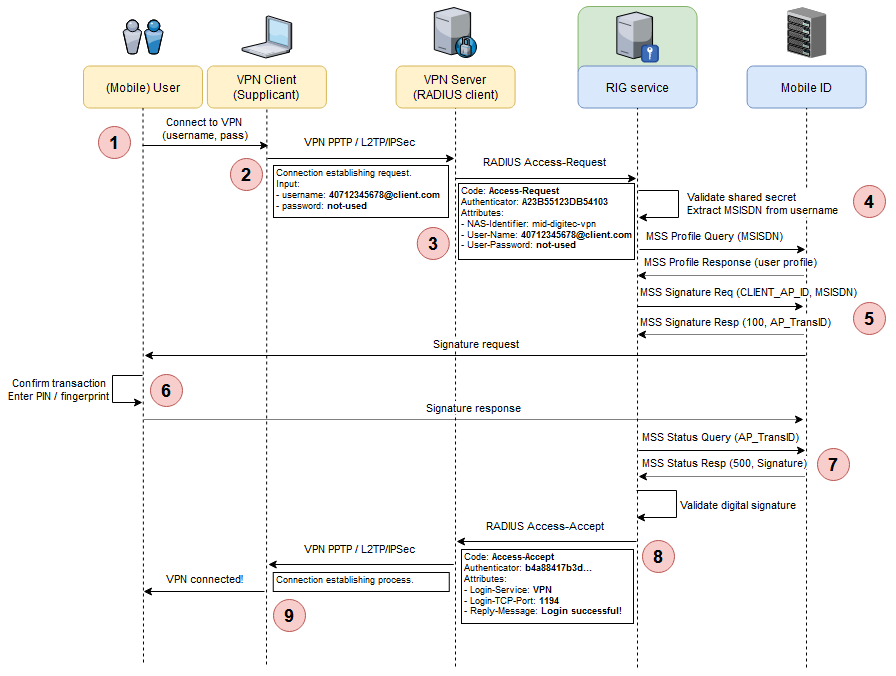
Step 1 — The user opens the VPN client (the Supplicant) on his/her laptop and clicks on the desired VPN connection. Since the user does not want to store credentials locally, the VPN client asks for the username and password. The user enters the username in the form of <MSISDN>@<domain> and leaves the password field empty (if the VPN client allows it; otherwise, a random password can be entered, as it is not used for this scenario).
Step 2 — The VPN client initiates a specific protocol connection (e.g. PPTP, L2TP/IPSec, etc.) to the VPN server, transmitting the username and password. The VPN server is configured to use RADIUS as the authentication protocol.
Step 3 — The VPN server creates a RADIUS Access-Request packet using its RADIUS shared secret, the username and password received from the VPN client, and the type of service the user requested: VPN. The RADIUS packet is sent to the RIG service for processing.
Code: Access-Request
Authenticator: A23B55123DB54103
Attributes:
  - NAS-Identifier: mid-digitec-vpn
  - User-Name: 40712345678@client.com
  - User-Password: not-used
Step 4 — The RIG service receives the request and proceeds to validate the NAS identifier and the shared secret of the client. Based on the client's configuration, the RIG service decides how to proceed and what parameters to use for the next step:
- Based on the authentication method algorithm configured for this client, an array of possible methods is selected. These can be any of SIM-based digital signature, app-based digital signature, OTP over SMS, or any other method that will be implemented in future versions.
- From the User-Name received from the RADIUS client, the user's MSISDN is extracted.
- Based on an MSS Profile Query for the user's MSISDN, the appropriate method of authentication is selected. If the user has an active Mobile ID account, the method could be SIM- or App-based digital signature. If the user has issues with the Mobile ID account or has no such account, the chosen method could be OTP over SMS. For the current use case, the user has an active Mobile ID account, so the flow continues with a SIM/App-based digital signature authentication (see Authentication Methods for more information).
- The AP ID, AP password, signature profile, and the DTBS are extracted and prepared from the client's configuration.
Step 5 — The RIG service connects to Mobile ID and sends the MSS Signature Request. The operation is asynchronous, so it receives an instant response along with an AP_TransID to use in subsequent polls. On its side, the Mobile ID service sends a signature request to the user's mobile device (via SIM or mobile app).
Step 6 — The user confirms the transaction and authenticates via PIN or fingerprint. A digital signature is created on the mobile device and returned to Mobile ID.
Step 7 — In one of its MSS Status Query polls, the RIG service receives the response with a finished signature status and the digital signature content.
Step 8 — After validating the signature, the RIG service decides to accept the user's authentication request. At this point, there are no further checks performed (e.g. proper user authorization) as the RIG service is not in the position of authorizing the user. Therefore, it creates a RADIUS Access-Accept packet with an access reply message (created from the client's configuration) and sends the packet back to the RADIUS client (i.e. VPN server) that called it.
Code: Access-Accept
Identifier: 15
Authenticator: ec89a776d8cdea8675ac7
Attributes:
  - Login-Service: VPN
  - Reply-Message: Authentication successful!
Step 9 — The VPN server receives the Access-Accept packet and proceeds to provide the user with the requested service (i.e. establishes the VPN connection).
MFA with LDAP
This scenario presents a setup where the RIG service is configured as the only RADIUS server in a client's network. It uses a local LDAP directory instance for validating the user's credentials and the Mobile ID service for second-factor authentication via a mobile signature. In this scenario, the MSISDN is not sent as part of the RADIUS User-Name attribute but is resolved by the RIG service via the LDAP directory.
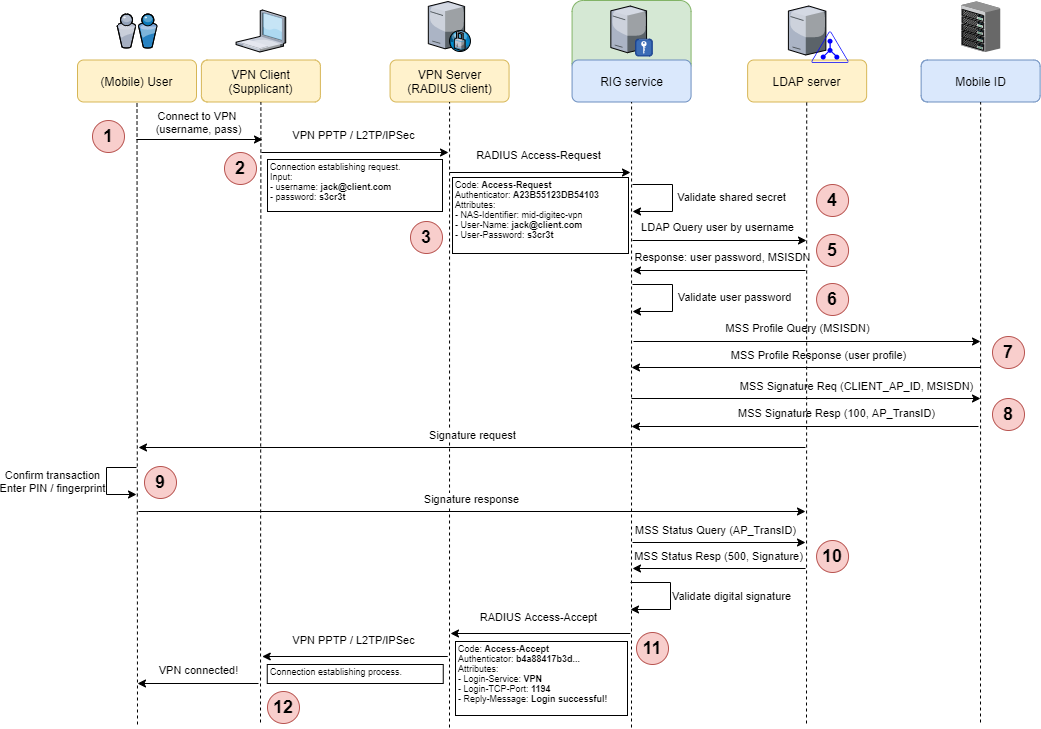
Step 1 — The user opens the VPN client (the Supplicant) on his/her laptop and clicks on the desired VPN connection. Since the user does not want to store credentials locally, the VPN client asks for the username and password. The user enters the username (e.g. jack@client.com) and the password.
Step 2 — The VPN client initiates a specific protocol connection (e.g. PPTP, L2TP/IPSec, etc.) to the VPN server, transmitting the username and password. The VPN server is configured to use RADIUS as the authentication protocol.
Step 3 — The VPN server creates a RADIUS Access-Request packet using its RADIUS shared secret, the username and password received from the VPN client, and the type of service the user requested: VPN. The RADIUS packet is sent to the RIG service for processing.
Code: Access-Request
Authenticator: A23B55123DB54103
Attributes:
  - NAS-Identifier: mid-digitec-vpn
  - User-Name: jack@client.com
  - User-Password: s3cr3t
Step 4 — The RIG service receives the request and proceeds to validate the NAS identifier and the shared secret of the client.
Step 5 — Based on the client's configuration, the RIG service performs a query on the configured LDAP directory, retrieving the user password and MSISDN based on the received username.
Step 6 — The retrieved LDAP data is used in this step to perform the first-factor authentication: validate the user-supplied password.
Step 7 — Based on an MSS Profile Query for the user's MSISDN, the appropriate method of authentication is selected. If the user has an active Mobile ID account, the method could be SIM- or App-based digital signature. If the user has issues with the Mobile ID account or has no such account, the chosen method could be OTP over SMS. For the current use case, the user has an active Mobile ID account, so the flow continues with a SIM/App-based digital signature authentication (see Authentication Methods for more information). The AP ID, AP password, signature profile, and the DTBS are extracted and prepared from the client's configuration.
Step 8 — The RIG service connects to Mobile ID and sends the MSS Signature Request. The operation is asynchronous, so it receives an instant response along with an AP_TransID to use in subsequent polls. On its side, the Mobile ID service sends a signature request to the user's mobile device (via SIM or mobile app).
Step 9 — The user confirms the transaction and authenticates via PIN or fingerprint. A digital signature is created on the mobile device and returned to Mobile ID.
Step 10 — In one of its MSS Status Query polls, the RIG service receives the response with a finished signature status and the digital signature content.
Step 11 — After validating the signature, the RIG service decides to accept the user's authentication request. At this point, there are no further checks performed (e.g. proper user authorization) as the RIG service is not in the position of authorizing the user. Therefore, it creates a RADIUS Access-Accept packet with an access reply message (created from the client's configuration) and sends the packet back to the RADIUS client (i.e. VPN server) that called it.
Code: Access-Accept
Identifier: 15
Authenticator: ec89a776d8cdea8675ac7
Attributes:
  - Login-Service: VPN
  - Reply-Message: Authentication successful!
Step 12 — The VPN server receives the Access-Accept packet and proceeds to provide the user with the requested service (i.e. establishes the VPN connection).
SMS Notifications
The most secure authentication method for users is to use Mobile ID with SIM- or app-based digital signatures. This, however, requires an active Mobile ID account, which is something that users might not have immediately available during a RADIUS authentication session. For this reason, after an authentication session is finished successfully (say, with a fallback to OTP over SMS, where the OTP is correctly provided by the user), the RIG service will follow up with the respective user with an SMS notification to help the user kick-start the process of fixing the issue with the Mobile ID account (or create an account altogether).
The RIG service cannot provide the UI required for fixing any account issues or guide the user into creating a new Mobile ID account. For these reasons, the SMS text sent as a delayed notification will contain a friendly message adapted to the respective account situation and a link to the Mobile ID user portal where the user can create a new account or fix any existing issues.
For each RADIUS client configured for the RIG service, the following delayed notifications are available:
| Account Situation | Notification Message |
|---|---|
| No Mobile ID account | "Create a new Mobile ID account by visiting the Mobile ID portal. https://link" |
| Account present, not active | "You can activate your Mobile ID account by visiting the Mobile ID portal. https://link" |
| Account present, PIN blocked | "We noticed your Mobile ID account has its PIN blocked. Visit the Mobile ID portal to unblock it. https://link" |
These messages are configurable on a per-client basis, including the template for each of the four supported Mobile ID languages, the time between notifications, and the total number of SMS messages to send per user (to prevent user spamming).
LDAP Authentication
In the previous chapters, we discussed various service setups, one of which could have the RIG service installed on the client's premises (either physical premises or client-managed cloud environment). For this setup, if the RIG service needs to act as the main (or only) RADIUS server, it needs to perform both username + password authentication and the second-factor authentication via Mobile ID. To accomplish this, one option is to enable the RIG service to validate user's credentials against an LDAP server.
The following diagram presents this setup:
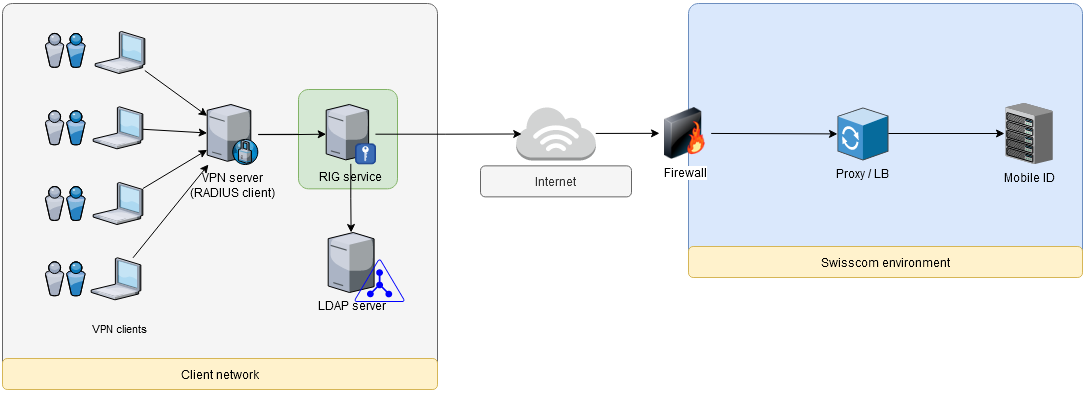
By configuration, the RIG service can connect to a local LDAP server and validate the received RADIUS User-Name and User-Password against a set of LDAP user attributes. Once this validation is successful, the service can move to the Mobile ID-based authentication part of the flow.
This feature allows the RIG service to be a quick drop-in replacement for the existing RADIUS server for clients that already have this combination (RADIUS + LDAP database).